For any AI client that supports remote MCP servers with OAuth authentication, you can connect it to DevStats using a custom MCP client.
Generating Your MCP Credentials
MCP access requires an active trial, an active Enterprise subscription, or specific enablement for your workspace. You must have the Owner, Admin, or Member role; Viewer and Collaborator roles cannot access MCP.
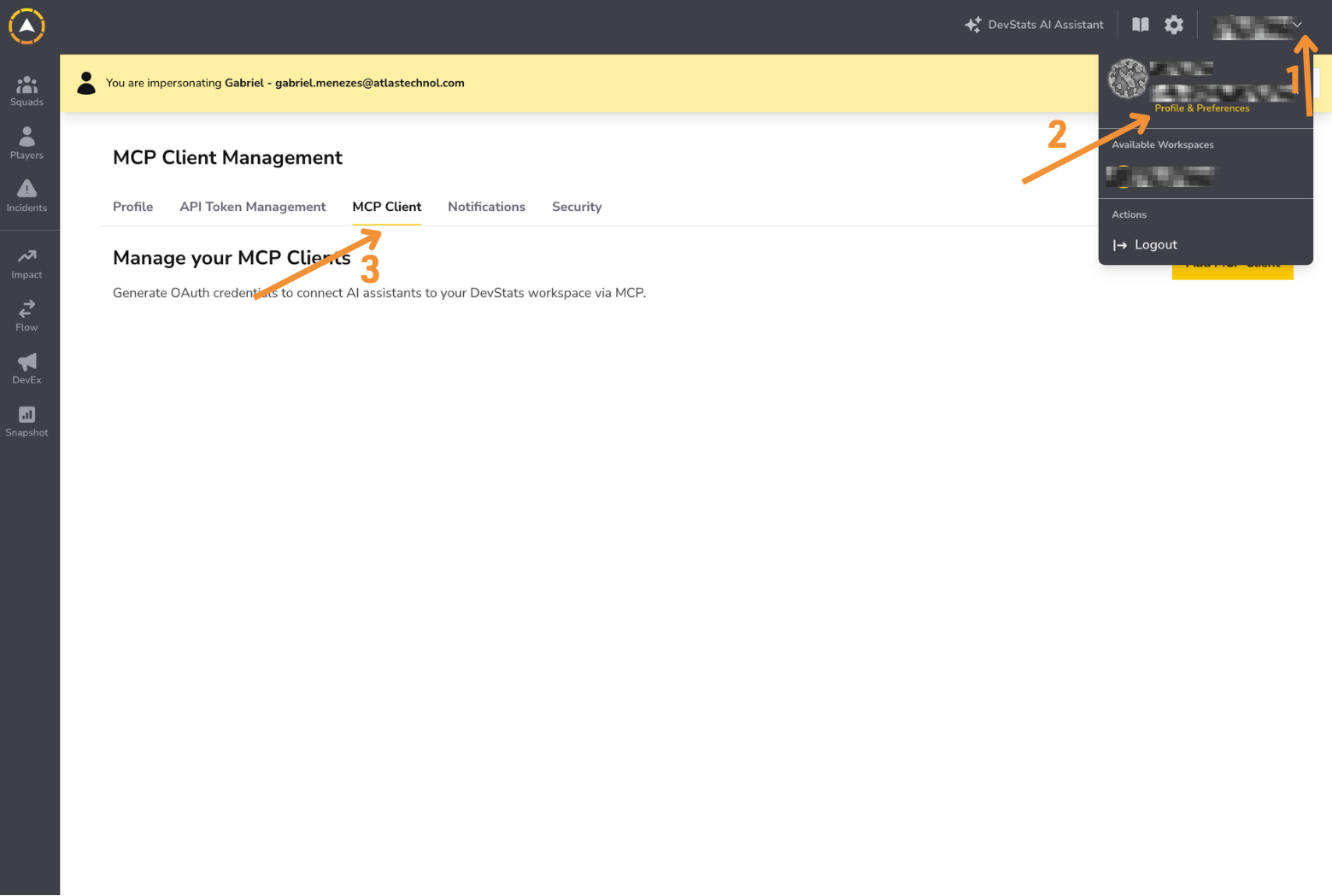
Step 1: Click your profile in the top right corner and go to Profile & Preferences. Click the MCP Client tab.
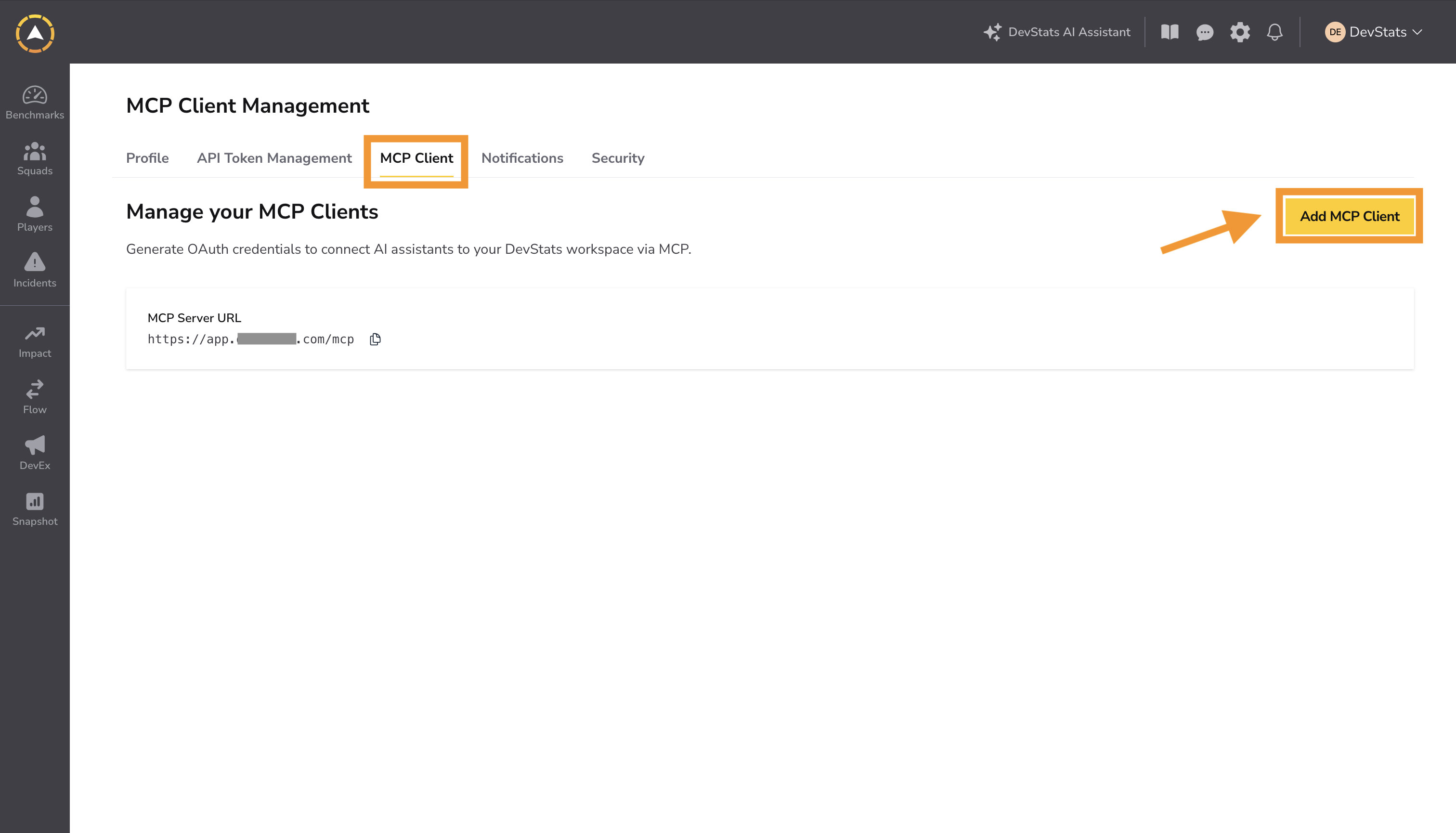
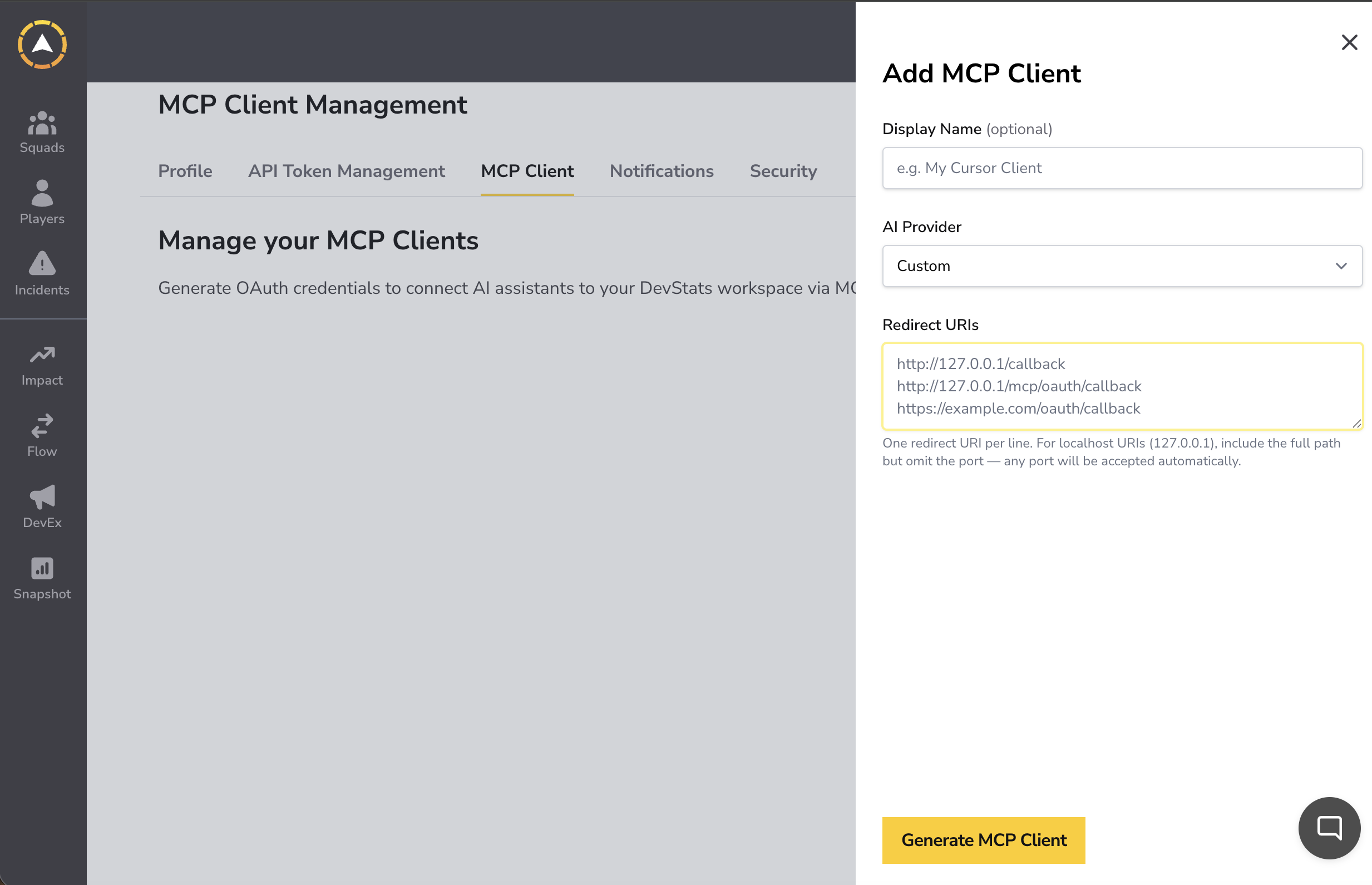
Step 2: Click Add MCP Client. Optionally add a display name, then select Custom as the AI provider. Enter your redirect URIs, one per line. For localhost URIs (127.0.0.1), include the full path but omit the port. Click Generate MCP Client.
Step 3: Copy the Client Secret shown, you will not be able to see it again after closing the dialog.
Step 4: After closing, your MCP client details (name, provider, Client ID, and MCP server URL) will be available in the MCP Client tab.
Connecting Your Client
Use the following details to configure your AI client:
- MCP server URL:
https://app.devstats.com/mcp - Client ID: available in the MCP Client tab after generating
- Client Secret: copied at generation time
Refer to your AI client's documentation for instructions on adding a custom MCP server with OAuth authentication.