What is the AI Reports Feature?
AI Reports turn your squad's engineering data into scheduled, written summaries. You describe what you want analyzed in plain language, set a cadence, and DevStats generates the report and delivers it to your workspace automatically.
Use them for recurring rituals like a Monday sprint kickoff summary, a weekly PR bottleneck digest, or a monthly DORA snapshot, without anyone pulling the numbers by hand.
You can find AI Reports under Settings > Workspace Settings > AI Reports.
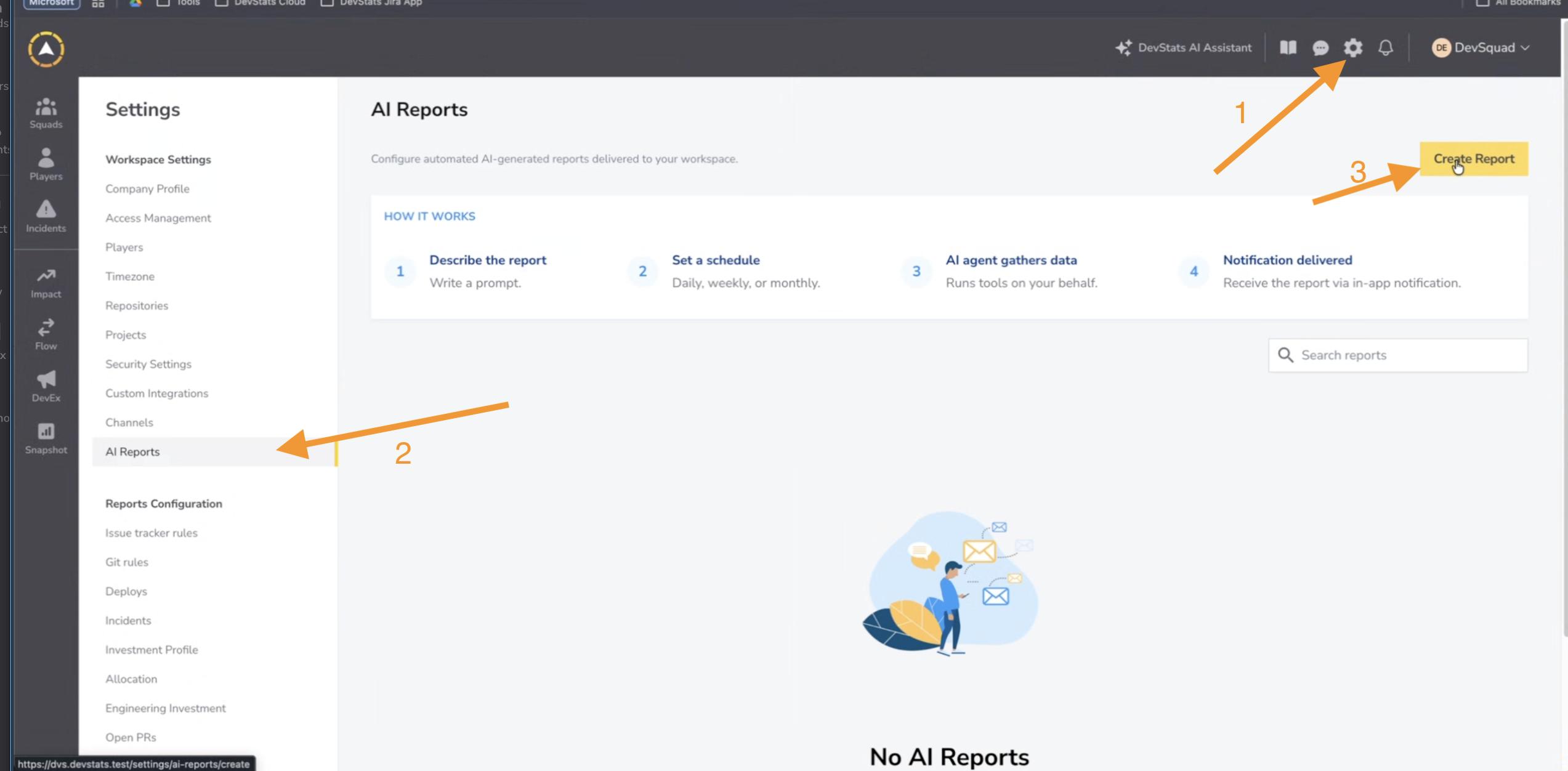
How it works
A report runs in four steps:
- Describe the report. Write a prompt telling the AI agent what to analyze, or start from a template.
- Set a schedule. Choose daily, weekly, or monthly, and the time it runs.
- The AI agent uses your DevStats data. It works from the squad's data already in DevStats, collected from the connected integrations (Git, issue tracker, and deploys). It does not access those systems directly.
- The report is delivered. As an in-app notification in your workspace, or to a connected destination: Slack, Teams, Discord, or Email.

Each run consumes AI Credits, including test runs. You can track usage under Settings > Billing > AI Credits.
Before you start
To get useful reports, make sure:
- The squad you want to report on has its integrations connected (Git, issue tracker, deploys). Reports are only as complete as the data feeding them.
- You have AI Credits available, since each run consumes credits.
- If you want delivery outside DevStats, the relevant destination is connected under Channels. Without one, reports are delivered as in-app notifications.
Create a report
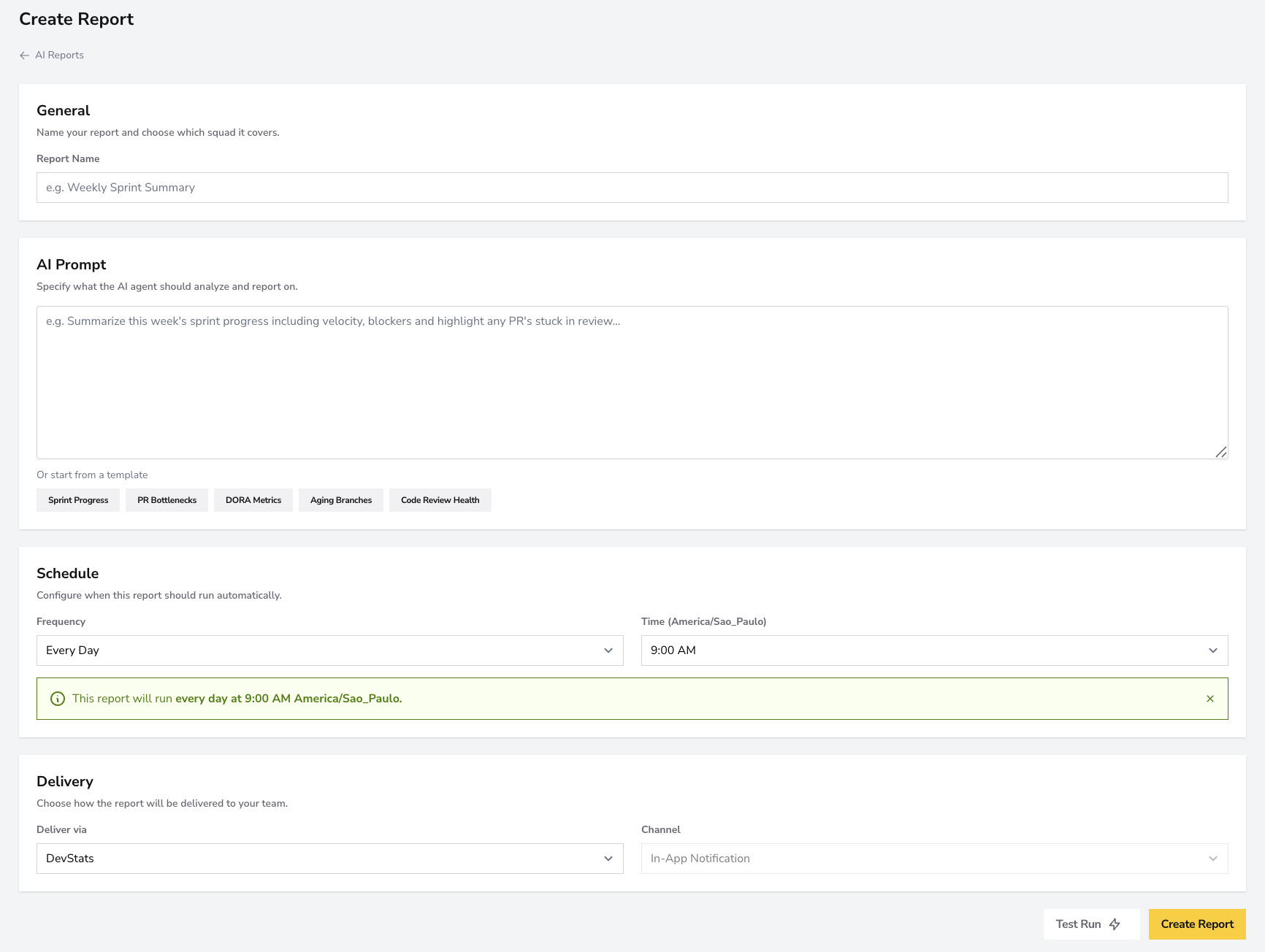
From AI Reports, select Create Report and fill in the four sections.
1. General
Name the report and choose the squad it covers.
| Field | Description |
|---|---|
| Report Name | A clear label your team will recognize, for example Weekly Sprint Summary. |
| Squad | The squad whose data the report analyzes. (Optional) |
2. AI Prompt
Tell the AI agent what to analyze and report on. Write it the way you would brief a teammate:
Summarize this week's sprint progress including velocity, blockers, and highlight any PRs stuck in review.
The more specific the prompt, the more focused the report. Name the metrics, the time window, and what you want flagged.
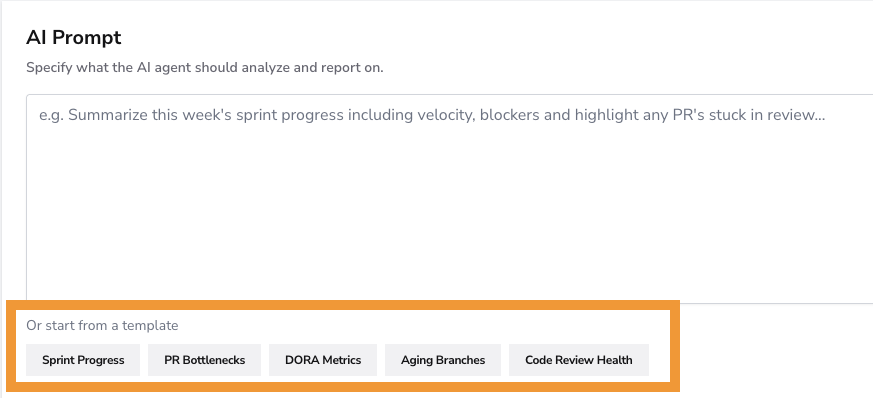
Start from a template
If you would rather not write a prompt from scratch, select a template under Or start from a template. Each template loads a predefined prompt into the field, which you can edit before saving.
| Template | Focuses on |
|---|---|
| Sprint Progress | Velocity, scope, and what is on track to complete this sprint. |
| PR Bottlenecks | Pull requests stuck in review or pickup, and where cycle time is being lost. |
| DORA Metrics | Deploy Frequency, Change Failure Rate, MTTR, and Cycle Time. |
| Aging Branches | Long-lived open branches that have drifted from the main line. |
| Code Review Health | Review size, review depth, and how review load is distributed. |
3. Schedule
Configure when the report runs automatically.
| Field | Description |
|---|---|
| Frequency | How often the report runs: Every Day, Every Week, or Every Month. |
| Time | The time of day the report runs. The field label shows your workspace timezone (for example UTC or America/Sao_Paulo), set under Settings > Workspace Settings > Timezone. |
A confirmation line below the fields restates the schedule in plain language, for example: This report will run every day at 9:00 AM UTC.

4. Delivery
Choose how the report reaches your team. The Delivery section has two fields: Deliver via sets the destination type, and Channel changes depending on what you choose.
| Deliver via | What the Channel field means |
|---|---|
| DevStats | The report arrives as an in-app notification in your workspace. There is no channel to pick: the field shows In-App Notification. |
| Slack / Teams / Discord | Select the channel where the report is posted, for example #general. |
| Enter one or more email addresses that should receive the report. |
To use Slack, Teams, Discord, or Email, connect them first under Channels.

Test before you schedule
Before committing the schedule, select Test Run to generate the report once with your current prompt and data. The result appears inline in a Test Run Output panel, so you can check that the prompt produces what you expect and refine the wording before saving.
A test run generates a real report, so it also consumes AI Credits. It does not change the schedule.
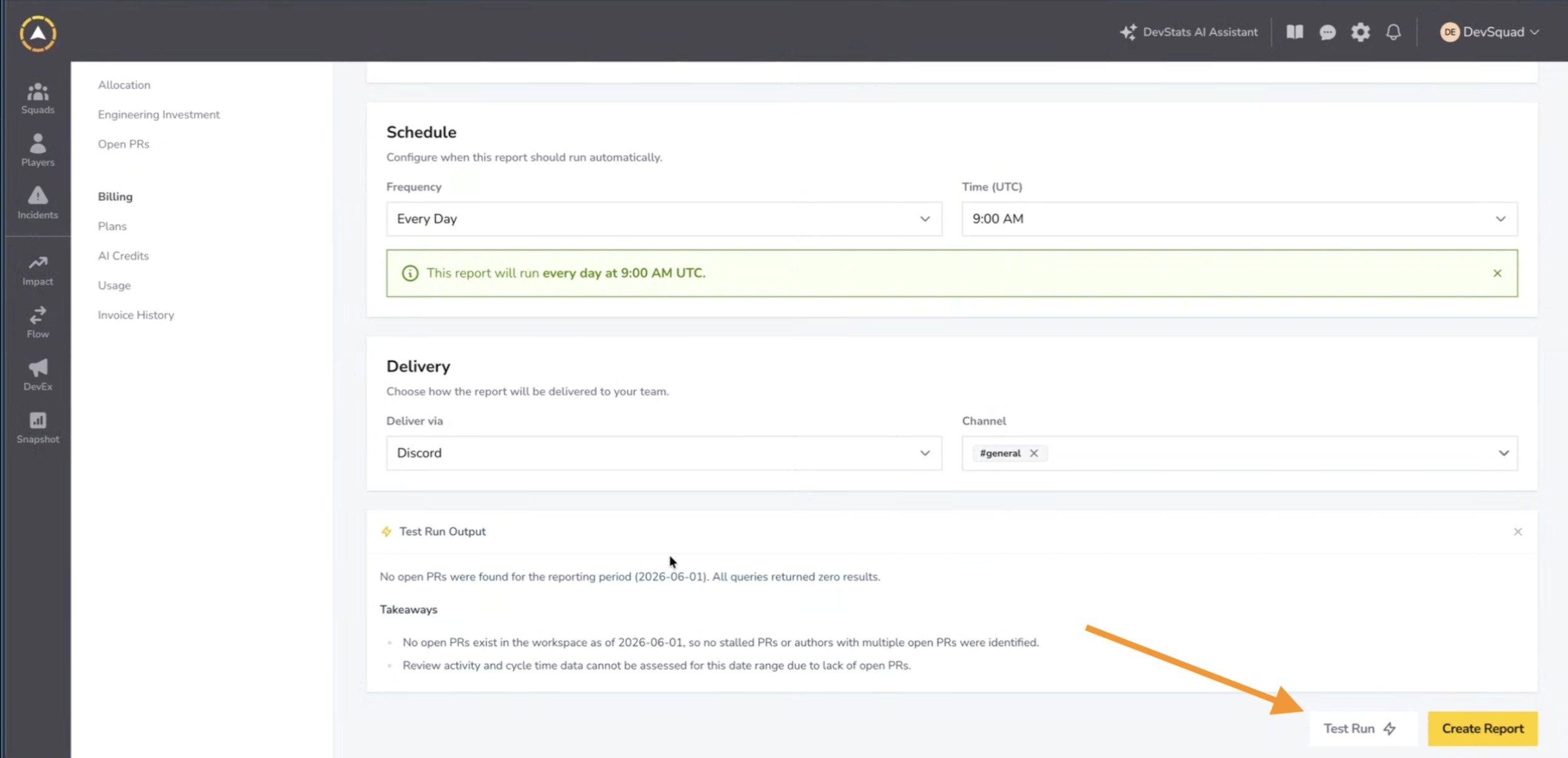
When the report looks right, select Create Report to save it and activate the schedule.
Manage your reports
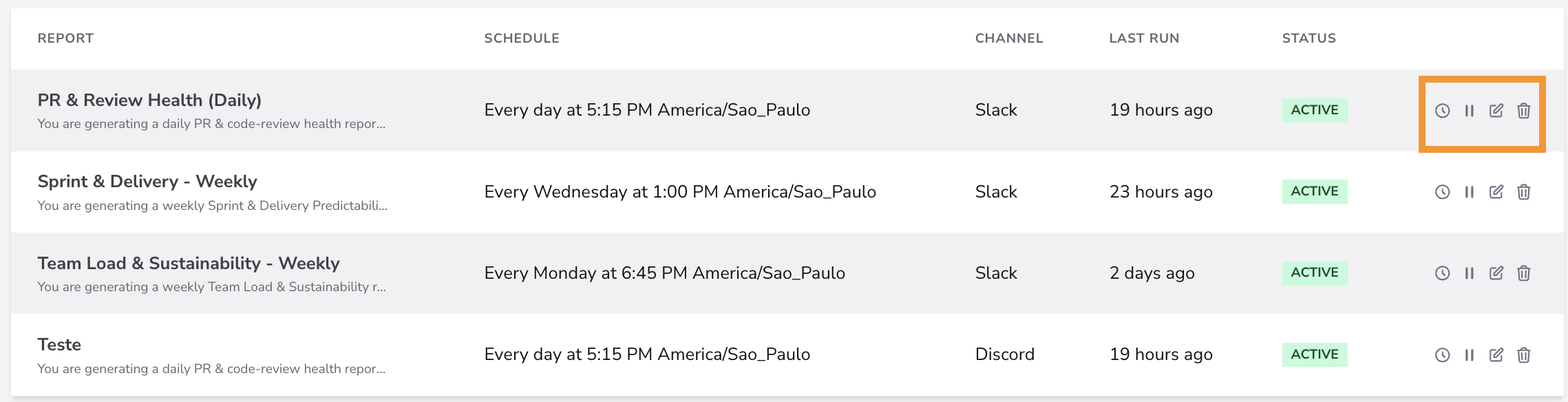
The AI Reports page lists every report you have created. Each row shows:
| Column | Description |
|---|---|
| Report | The report name and a preview of its prompt. |
| Schedule | When it runs, including frequency, time, and timezone. |
| Channel | Where it is delivered. |
| Last Run | How long ago it last ran. |
| Status | Whether the report is active or paused. |
Use the search box to filter reports by name.
Report actions
Each report row has four quick actions:
| Action | Description |
|---|---|
| Run history | Opens the report's run history (see below). |
| Pause / resume | Pauses the schedule so the report stops running, or resumes a paused report. A paused report stays in the list but does not run until you resume it. |
| Edit | Opens the report configuration to change its prompt, schedule, or delivery. |
| Delete | Removes the report permanently. |
Run history
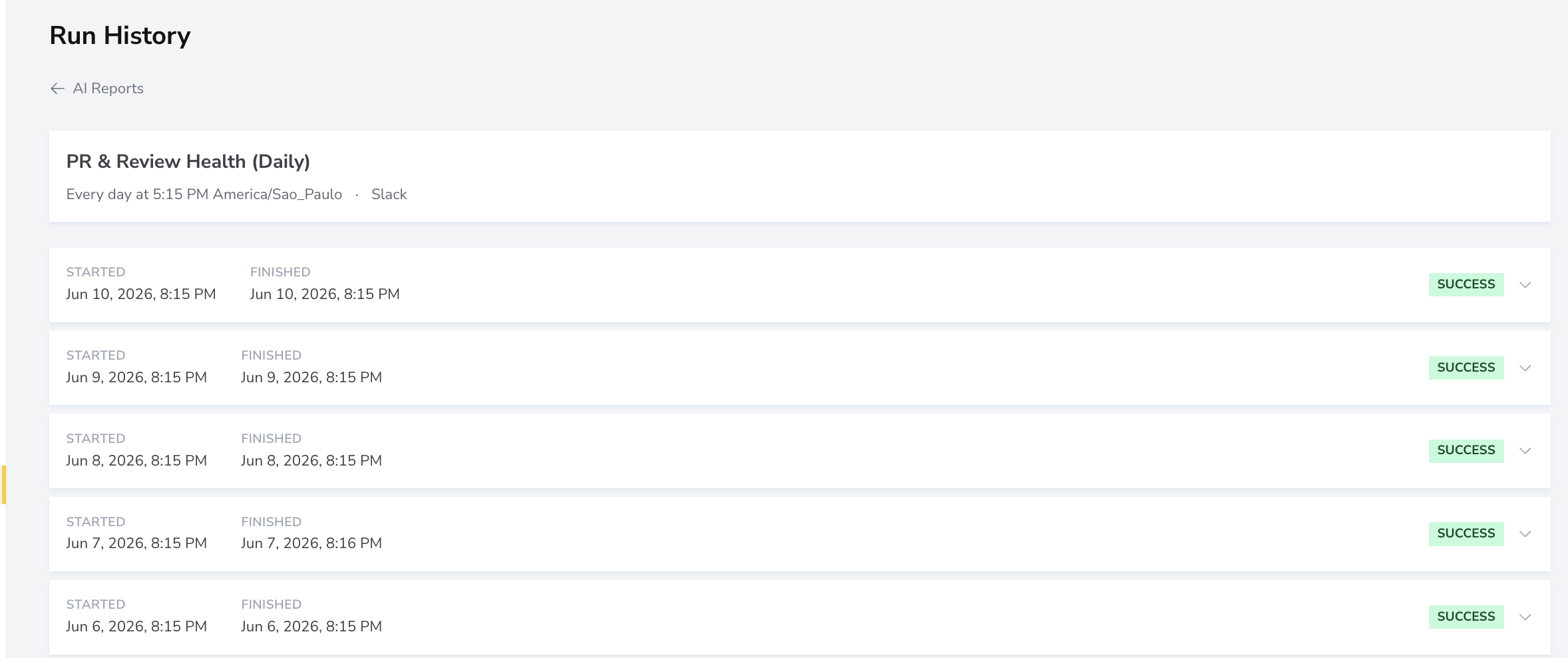
Select the run history action on a report to see every time it has run. The page header shows the report name, its schedule, and its channel. Below it, each run lists:
- Started: when the run began.
- Finished: when the run completed.
- Status: the result of the run, for example Success.
Expand a run to see its details.
Channels
Channels are the connected destinations where AI Reports are delivered. Connect a channel once under Settings > Workspace Settings > Channels, and it becomes available in the Deliver via step when you create or edit a report.
For setup instructions and supported delivery methods, see the Channels documentation.
DevStats supports five channel types:
| Channel | Delivers to |
|---|---|
| Slack | A channel in your connected Slack workspace, for example #general. |
| Teams | A channel in your connected Microsoft Teams workspace. |
| Discord | A channel in your connected Discord server, for example #general. |
| One or more email addresses. | |
| DevStats | In-app notifications in your workspace. No setup needed: this option is always available. |
Tips
- Scope each report to one squad. Squad-level prompts produce sharper summaries than broad, multi-team asks.
- Match the cadence to your ritual. Daily for active standups, weekly for retros, monthly for leadership snapshots.
- Be explicit in the prompt. Name the metrics and the time window you care about instead of asking for a general overview.
- Test before you schedule. A test run shows exactly what your team will receive, so you can refine the prompt first.