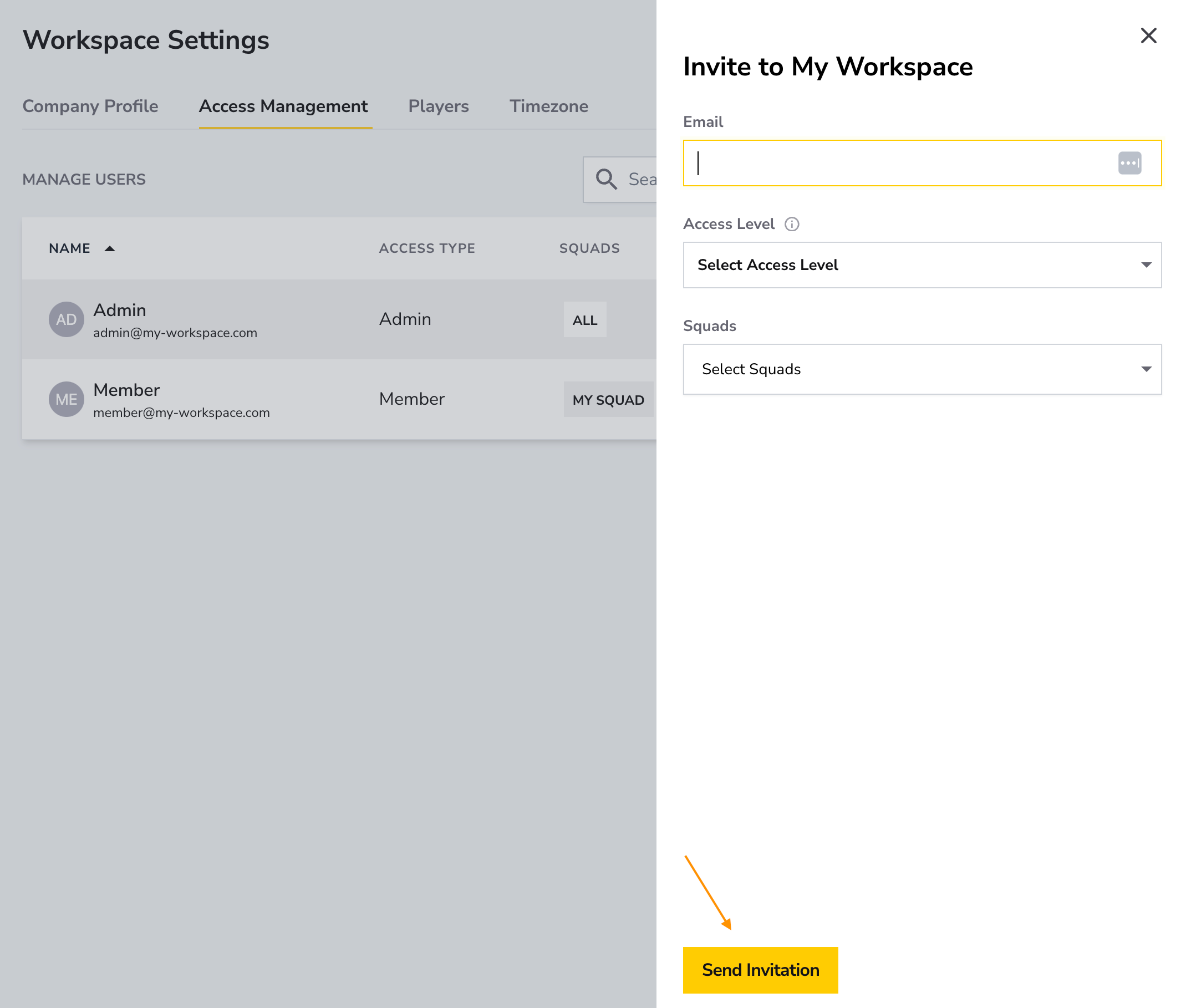
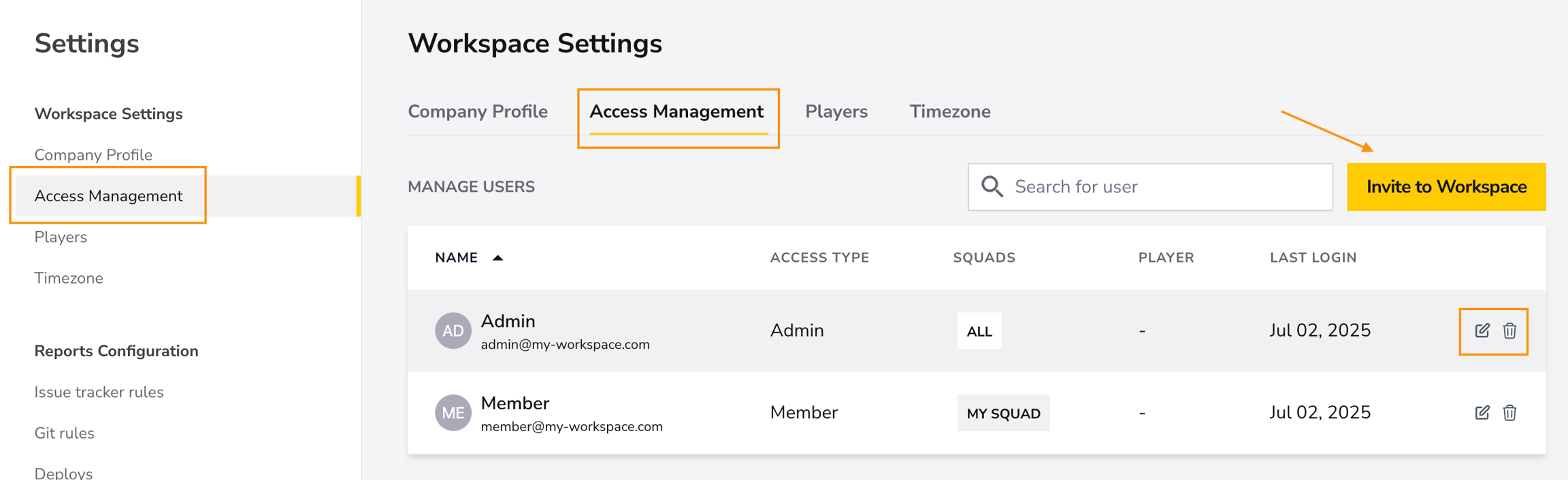
The Access Management page allows workspace owners and administrators to invite users, assign access levels, and control which squads they can access.
First, let's learn about the different levels of access in DevStats:
- Owner: Identifies the workspace owner. This access level cannot be assigned or changed from Access Management; contact support to transfer workspace ownership.
- Admin: Has full access to workspace features and data, including user and settings management.
- Member: Can access the reports and squads they are assigned to, without broader workspace administration privileges.
- Viewer: Has the same squad-based access as a Member, but cannot use the Players filter or open individual player pages.
- Collaborator: Is linked to a specific player. Collaborators can filter reports by all players or themselves, but not by another individual player.
How-to: Invite a New User to the Workspace
- Click Invite to Workspace.
- Enter one or more email addresses. Collaborator invitations accept one email at a time.
- Select Admin, Member, Viewer, or Collaborator. Owner is not available as an invitation access level.
- For Members and Viewers, select one or more squads. For a Collaborator, select the player that the invited user represents.
- Click Send Invitation. Each invited user will receive an email with instructions for joining the workspace.