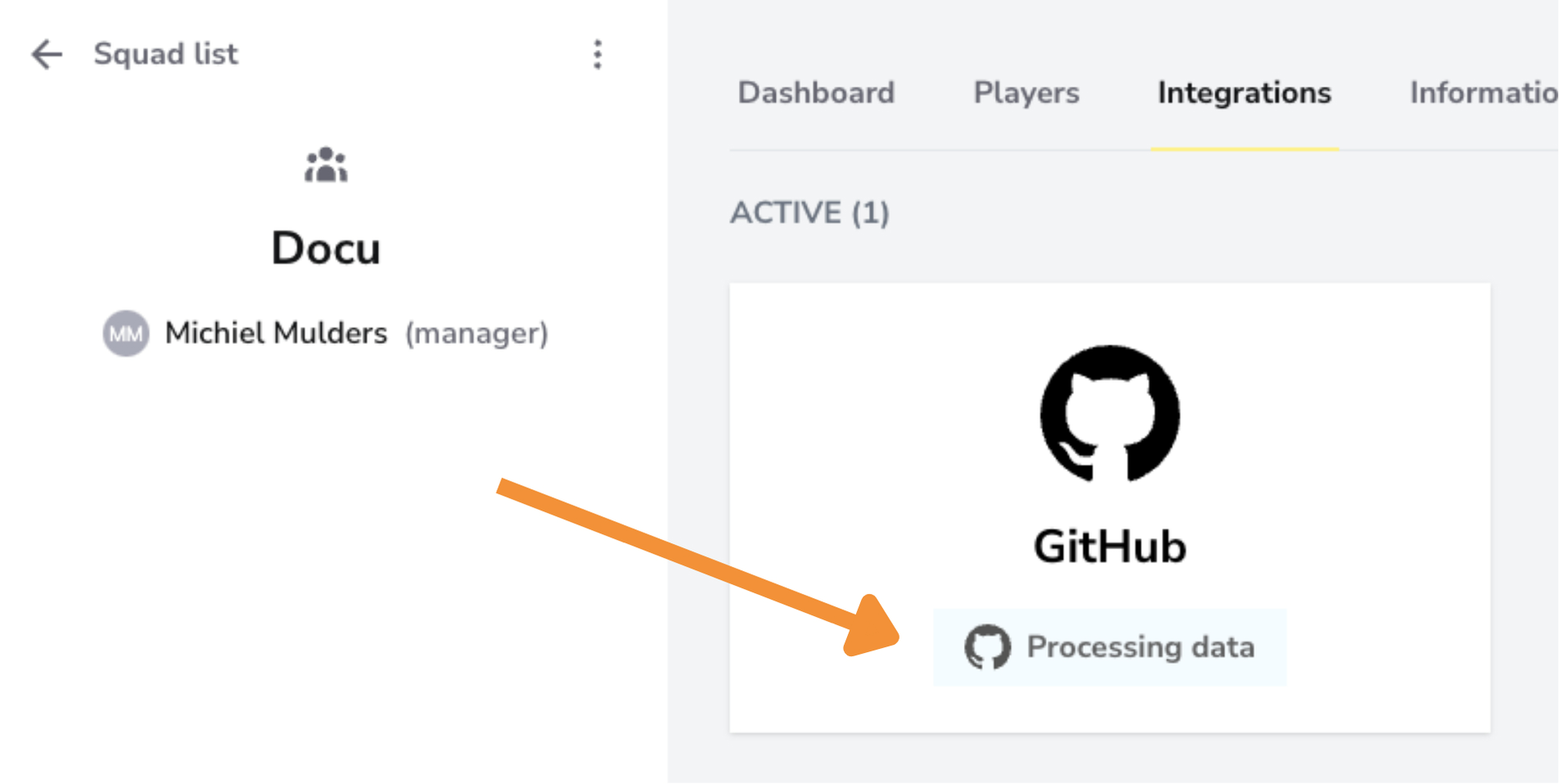
Overview
Connect your GitHub account to DevStats to track pull requests, commits, cycle time, and deployment activity across your repositories.
Due to a GitHub limitation, creating webhooks through OAuth requires admin permissions at the organization level. However, if you prefer not to grant full admin access, you can integrate using a fine-grained personal access token instead. This method allows you to grant only the specific permissions needed for DevStats to read repository data, without requiring full administrative privileges.
Authentication Modes
DevStats supports four ways to authenticate with GitHub. Choose the one that best fits your team's security requirements.
| Mode | Best for |
|---|---|
| OAuth2 | Quick setup; requires organization admin permissions |
| Fine-grained Token | Teams that prefer minimal permissions without admin access |
| Personal Access Token (classic) | Simpler token-based access for personal or organization repos |
| Repositories already in DevStats | Reusing repos already connected in another squad |
Option 1: OAuth2
OAuth2 is the fastest way to connect GitHub. Note that creating webhooks via OAuth requires admin permissions at the organization level. If you'd prefer not to grant admin access, use a Fine-grained Token instead (Option 2).
Steps
1. From your squad, click Add integration on the GitHub card. On the next screen, select OAuth2 as the authentication mode and click Authenticate with GitHub. You'll be redirected to log in to GitHub.
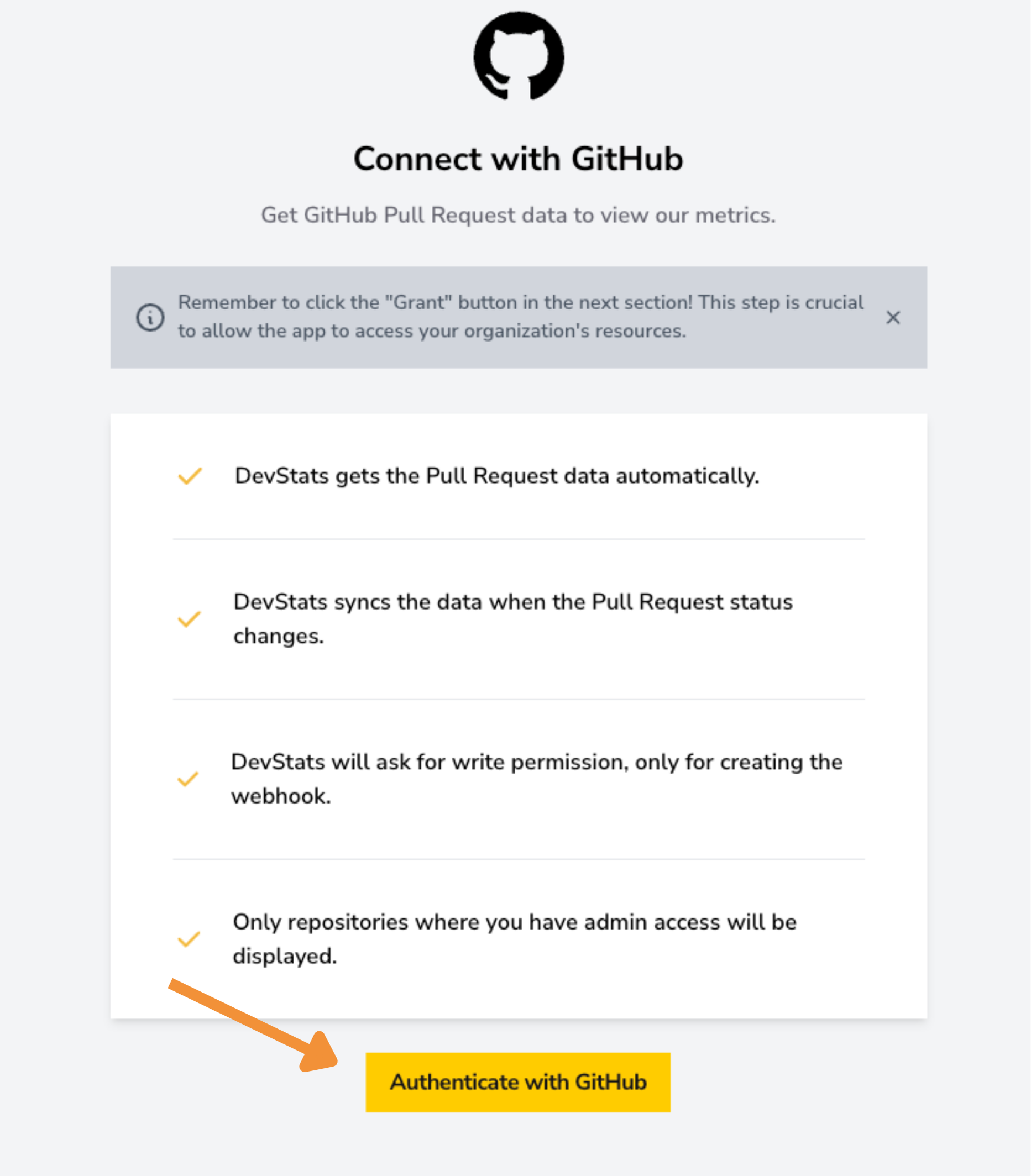
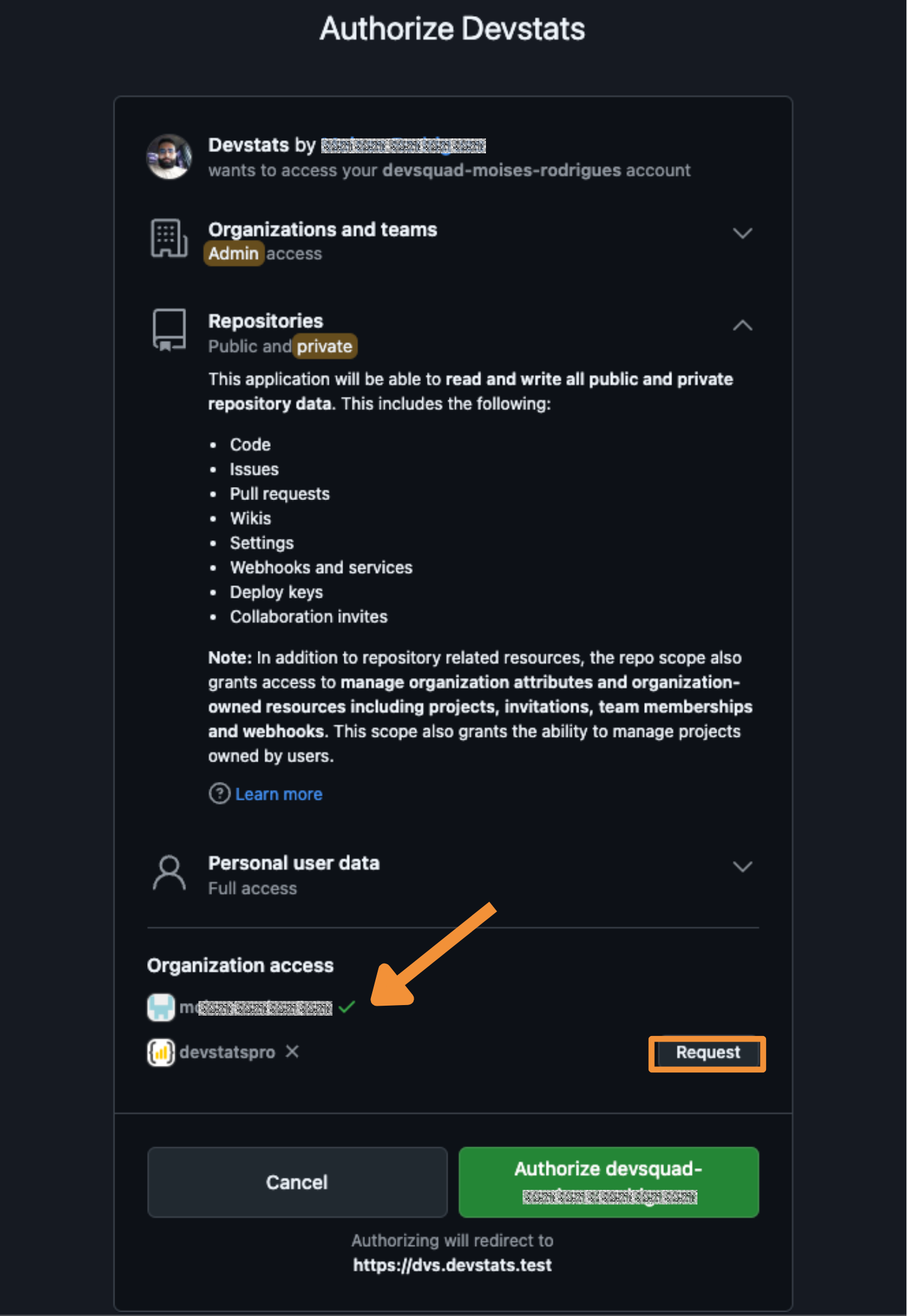
2. On the GitHub authorization page, click Grant next to your organization to give DevStats access to its repositories.
Do not skip the Grant step. If you authorize without granting access to your organization, GitHub will redirect you back to DevStats without organization repository access, and the repository list will appear empty.
3. Back in DevStats, select the repositories you want to track. You can filter by type: User or Organization. In most cases, select Organization and search for the repositories you want to integrate.
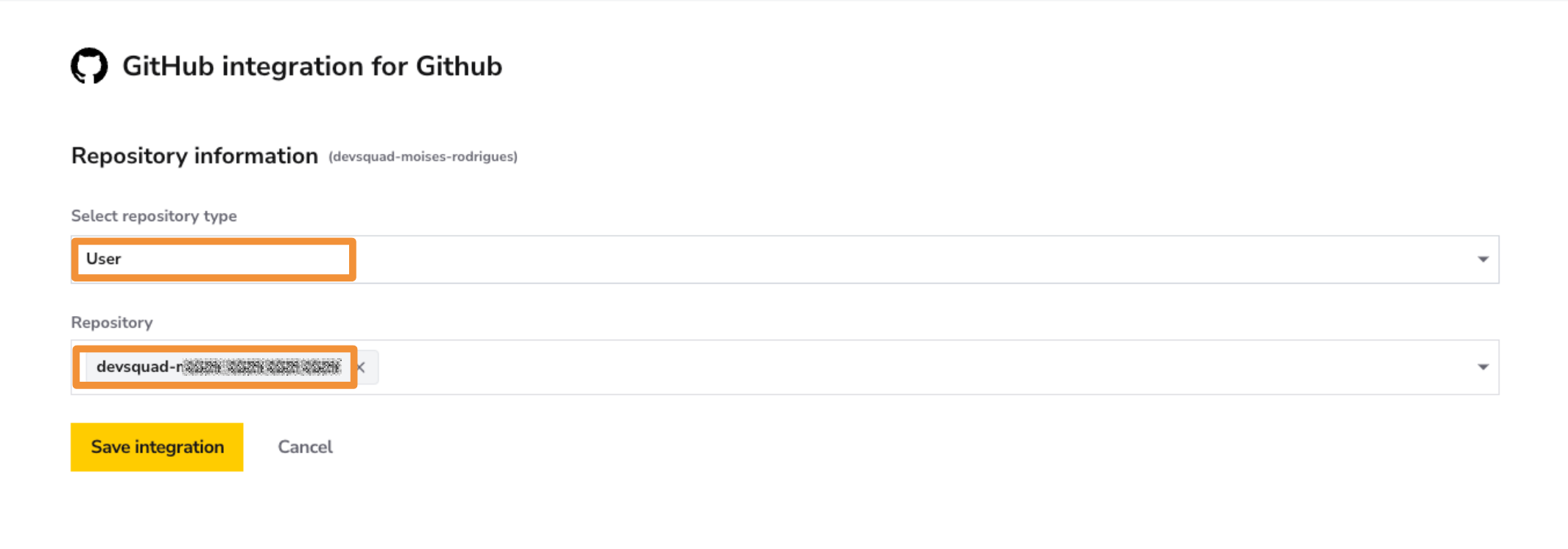
4. Click Save Integration.
Option 2: Fine-grained Token
Fine-grained tokens let you grant DevStats only the specific permissions it needs, without requiring organization admin access. This is the recommended option for teams with stricter security policies.
Required permissions
| Permission | Access level |
|---|---|
| Contents | Read-only |
| Issues | Read-only |
| Metadata | Read-only |
| Pull Requests | Read-only |
| Webhooks | Read & Write |
Steps
1. In GitHub, go to Settings → Developer settings → Personal access tokens → Fine-grained tokens.
2. Click Generate new token. Set an expiration date and, under Repository access, choose the repositories you want DevStats to track.
3. Under Permissions, set the access levels listed in the table above.
4. Click Generate token and copy the token.
5. Back in DevStats, select Fine-grained Token as the authentication mode, paste your token, and click Connect.
6. Select the repositories you want to track and click Save Integration.
Option 3: Personal Access Token (classic)
Classic personal access tokens provide broader access than fine-grained tokens. Use this option if your GitHub setup does not support fine-grained tokens yet.
Required scopes
| Scope | Reason |
|---|---|
repo |
Read access to repositories and pull requests |
admin:repo_hook |
Create and manage webhooks |
read:org |
Read organization membership and repositories |
Steps
1. In GitHub, go to Settings → Developer settings → Personal access tokens → Tokens (classic).
2. Click Generate new token (classic). Give it a descriptive name (e.g., DevStats) and select the scopes listed above.
3. Click Generate token and copy the token.
4. Back in DevStats, select Personal Access Token (classic) as the authentication mode, paste your token, and click Connect.
5. Select the repositories you want to track and click Save Integration.
Option 4: Repositories Already in DevStats
If you have already connected GitHub repositories in another squad, you can reuse that connection without re-authenticating.
Steps
1. From your squad, click Add integration on the GitHub card.
2. Choose Repositories already in DevStats as the authentication mode.
3. Select the repositories you want to add to this squad and click Save Integration.
What Happens Next
After saving your integration, DevStats will begin importing your historical data. Depending on the size and history of your repositories, processing can take anywhere from one hour to over a day. You will receive an email notification once your dashboards are ready.