What is the Allocation Feature?
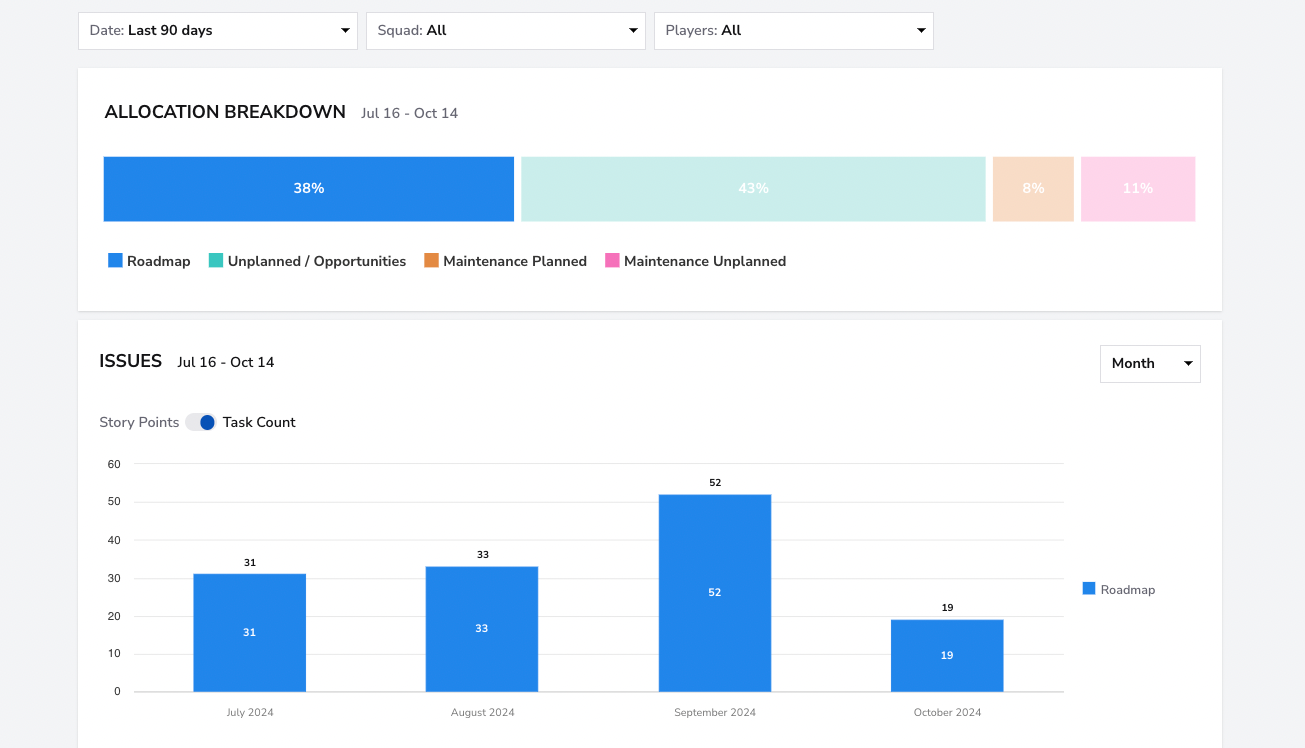
The Allocation dashboard provides an in-depth view of how a team’s time and efforts are distributed across various types of work over a given period. This tool helps teams achieve a balanced workflow by visualizing different work categories, allowing them to prioritize effectively, manage unforeseen tasks, and maintain focus on long-term goals.
Metrics: Understanding the Four Types of Work
It's important to balance the different types of work a team handles to maintain productivity and ensure alignment with strategic objectives. This dashboard categorizes work into four types to help visualize and manage this balance:
Roadmap Work
- What: Roadmap work refers to tasks planned in advance that contribute to the product’s strategic goals, such as new feature development, enhancements, or other major initiatives.
- Why it matters: Focusing on roadmap work ensures the team consistently works toward long-term milestones and objectives, staying aligned with the company's strategic vision.
- How to use it: Regularly monitor the percentage of time dedicated to roadmap work. Ensure that sufficient resources are allocated to long-term goals without being overshadowed by unplanned tasks or maintenance.
- User interface:
Allocation Dashboard
The Allocation Dashboard is designed to help teams maintain a healthy balance of all work types, providing insights that allow for proactive management of tasks and resources:
Filters
The Date Filter allows you to view data for specific time periods. You can filter for the last month, quarter, or 365 days. If you need more granular control, you can filter by a custom date range.
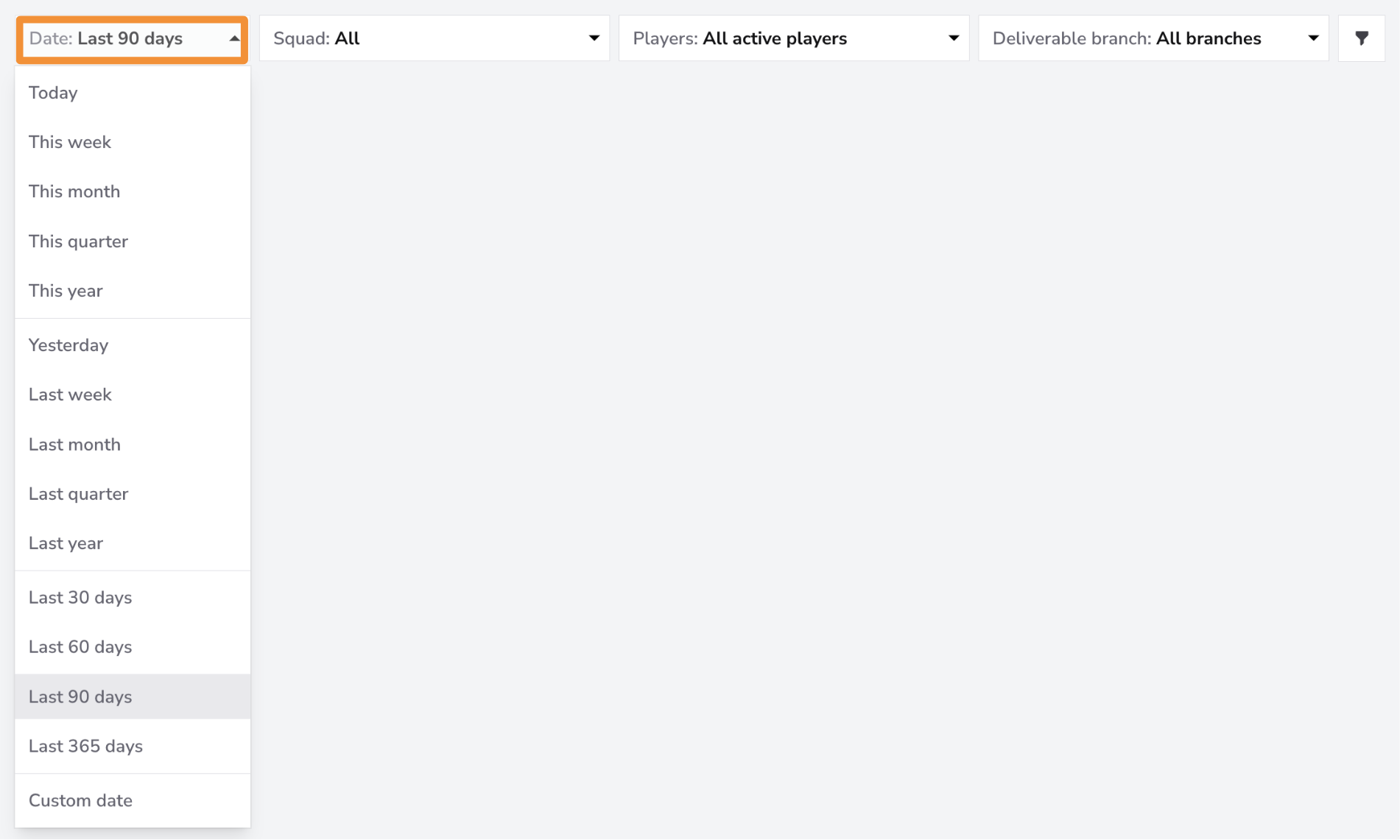
Use the Squad Filter to view the allocation for individual squads. If you want a broader overview of all teams, select the "All" filter to see the allocation across all squads at once.

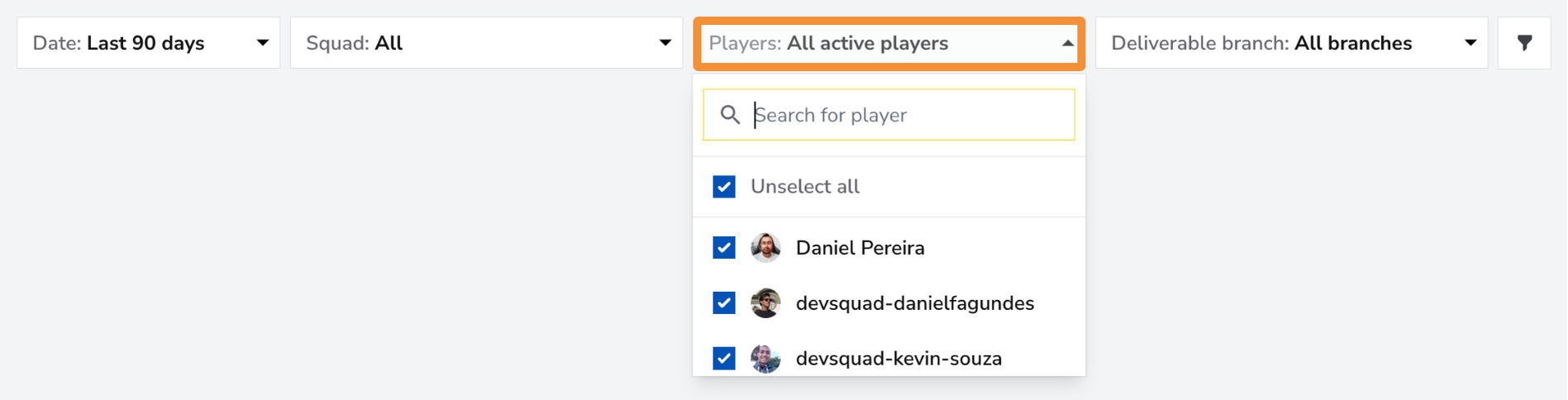
Use the Players Filter to focus on individual team members or a specific group within your squad. You can select one member for a detailed view, a group of team members if they form a sub-squad, or all team members for an overview of the entire squad's allocation.
Explore Best Practices
Conclusion
The Allocation Dashboard provides a clear, actionable overview of how team efforts are distributed across different types of work. By conducting regular reviews and maintaining flexibility, teams can stay aligned with business objectives while adapting to changes in workload distribution. Leveraging this tool helps maintain a balanced workflow, focus on strategic goals, and enhance overall team effectiveness in delivering value.