What Are Squads?
Squads in DevStats are custom groups of developers that allow you to track engineering metrics at the team level. You can use squads to represent:
- Product teams
- Cross-functional groups
- Sub-teams within a department
- Any custom grouping that fits your organization
Squads give you a flexible way to filter, compare, and analyze metrics for specific groups of developers, improving visibility and decision-making at the team level.
Add Your First Squad
Workspace owners and administrators can create squads.
Open Squads and click Add first squad (or Add squad if you already have squads).
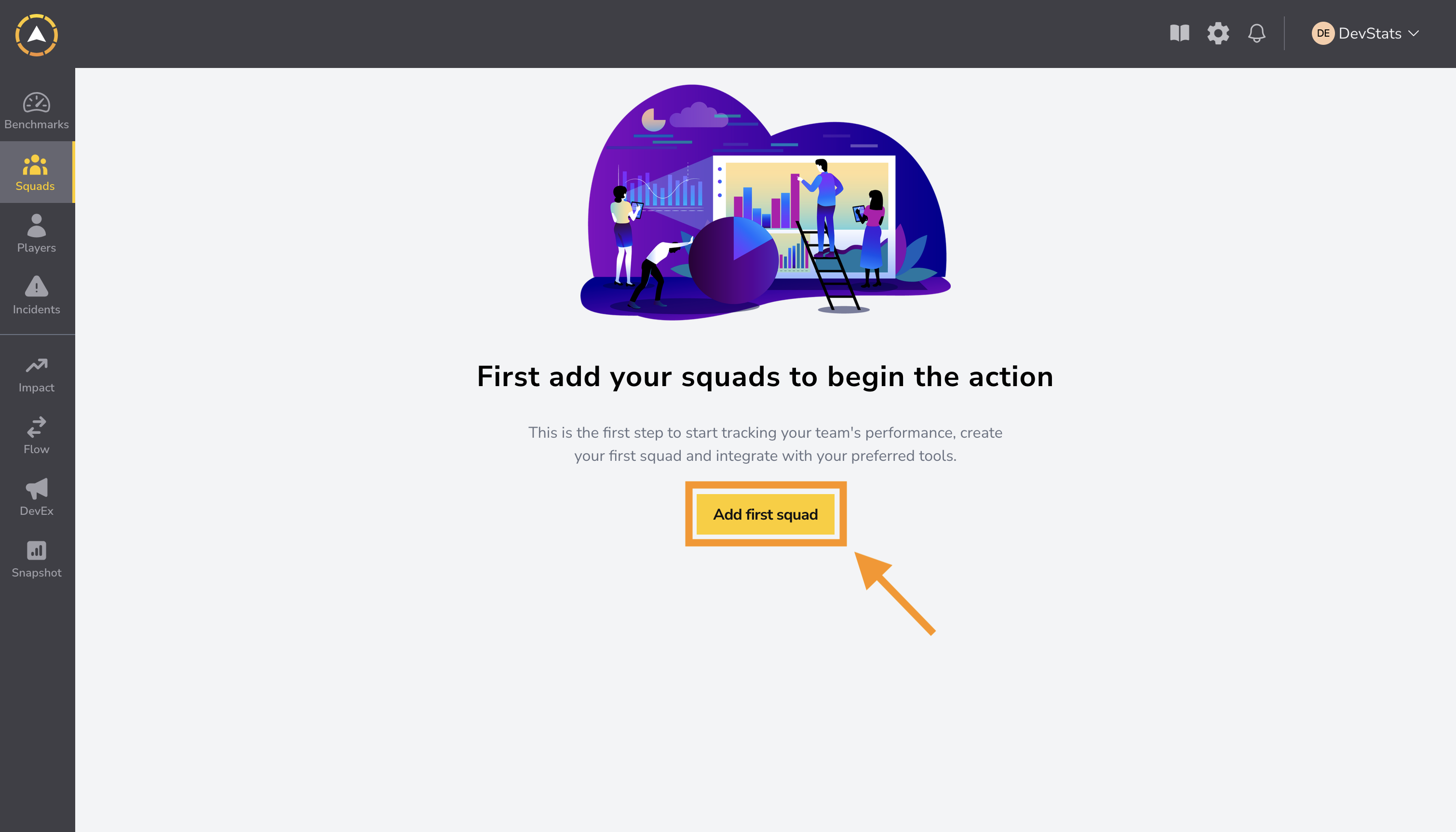
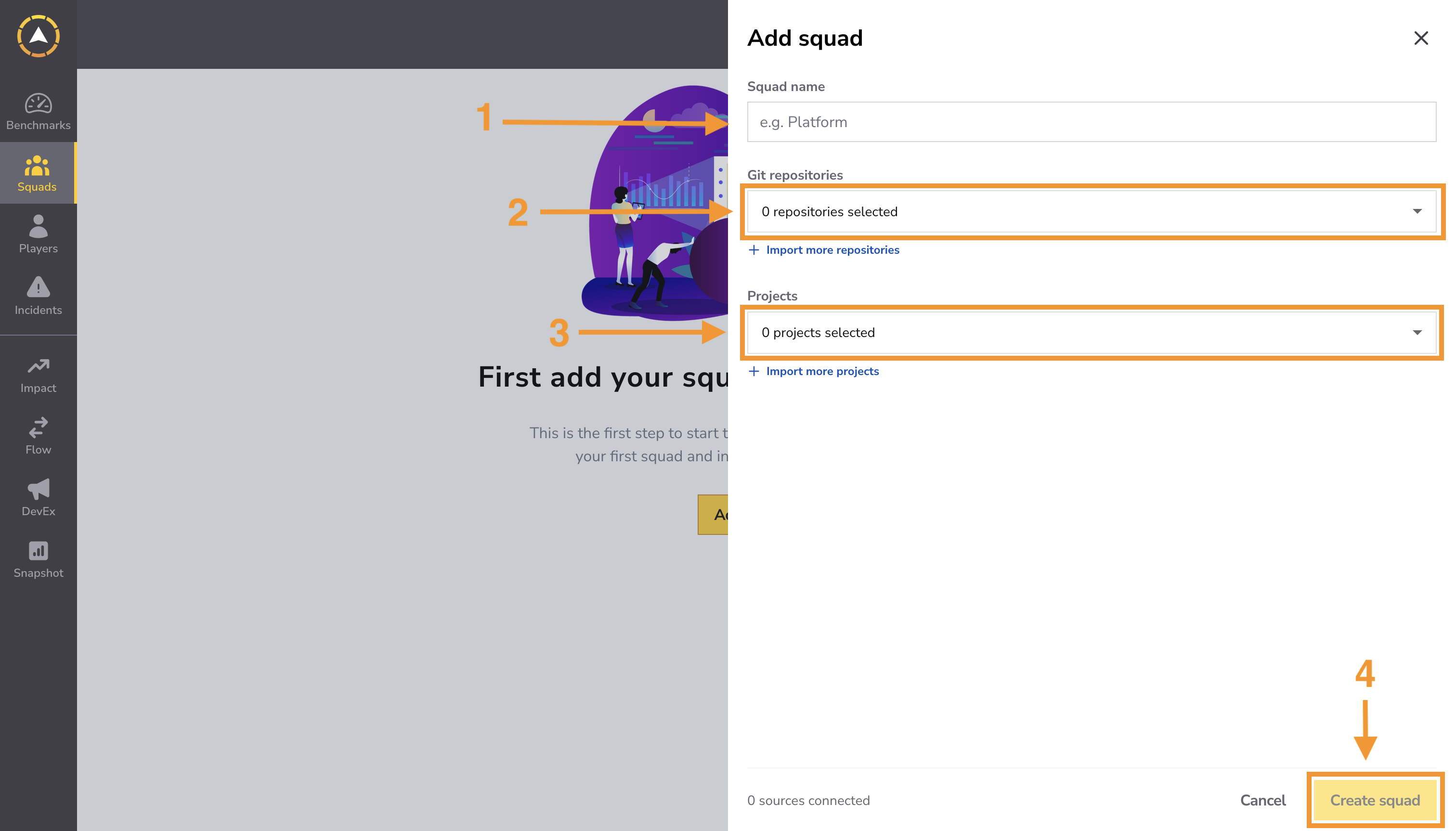
Connect the team's repositories and projects when creating the squad so DevStats can collect the data used in its engineering metrics.
In the Add squad form:
- Enter a Squad name. The name is required, must contain 2–255 characters, and must be unique within the workspace.
- Select the team's Git repositories to connect to the squad.
- Select the team's Projects to connect to the squad.
- Click Create squad. DevStats creates the squad and returns you to the squads list.
Use the search fields to find available sources. If a source is not listed, use Import more repositories or Import more projects to choose a provider and follow its connection and selection steps.
We recommend connecting repositories and projects when creating the squad. If you need to complete this step later, you can continue creating the squad and add the connections in the Integrations tab. The sources available for selection depend on your connected accounts and access.
What's next? Add Integrations
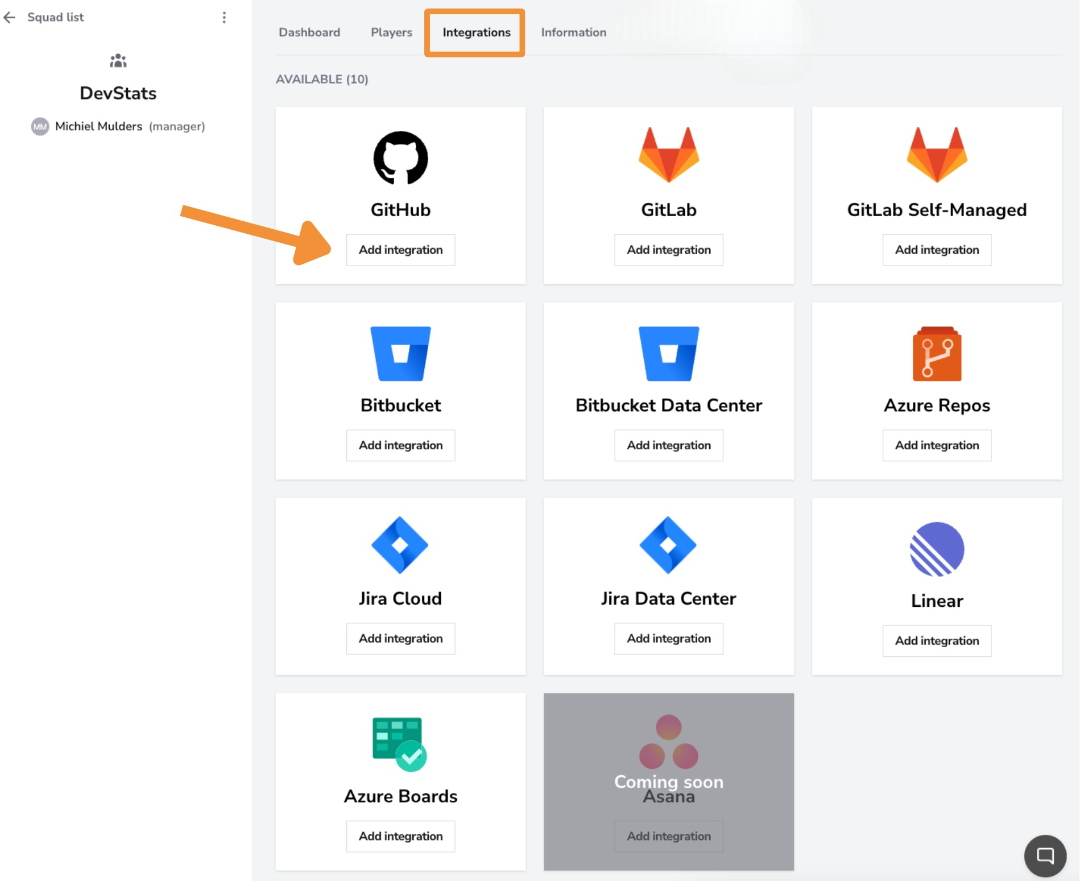
To add more sources after creating the squad, open it and navigate to the Integrations tab. Here, you'll see all available integrations that allow DevStats to collect data for your squad.
You can connect:
- Version control systems, such as Git repositories
- Project management tools
All the integrations are in the settings under Squad Integrations. Select an integration you want to add, and a quick guide will explain how to do this.
After saving the integration, DevStats will begin processing your data.
Processing time varies depending on the size and history of your repository and may take anywhere from one hour to more than a day.
FAQ
How to Change a Player from One Squad to Another?
A player can be in two or more squads simultaneously!
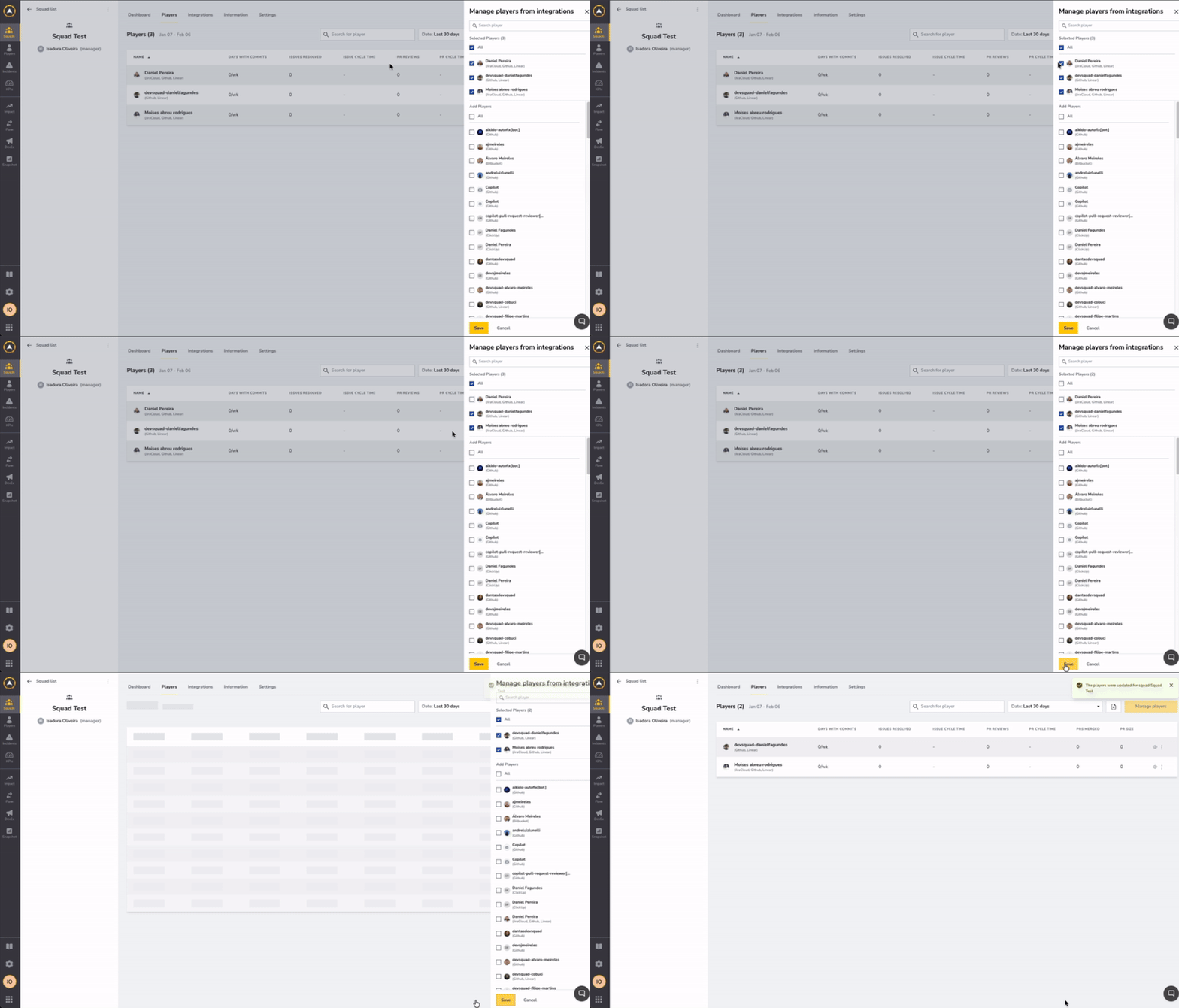
Step 1: Access the Squad Players Page
- Navigate to the squad the player is currently on
- Click "Manage players" button
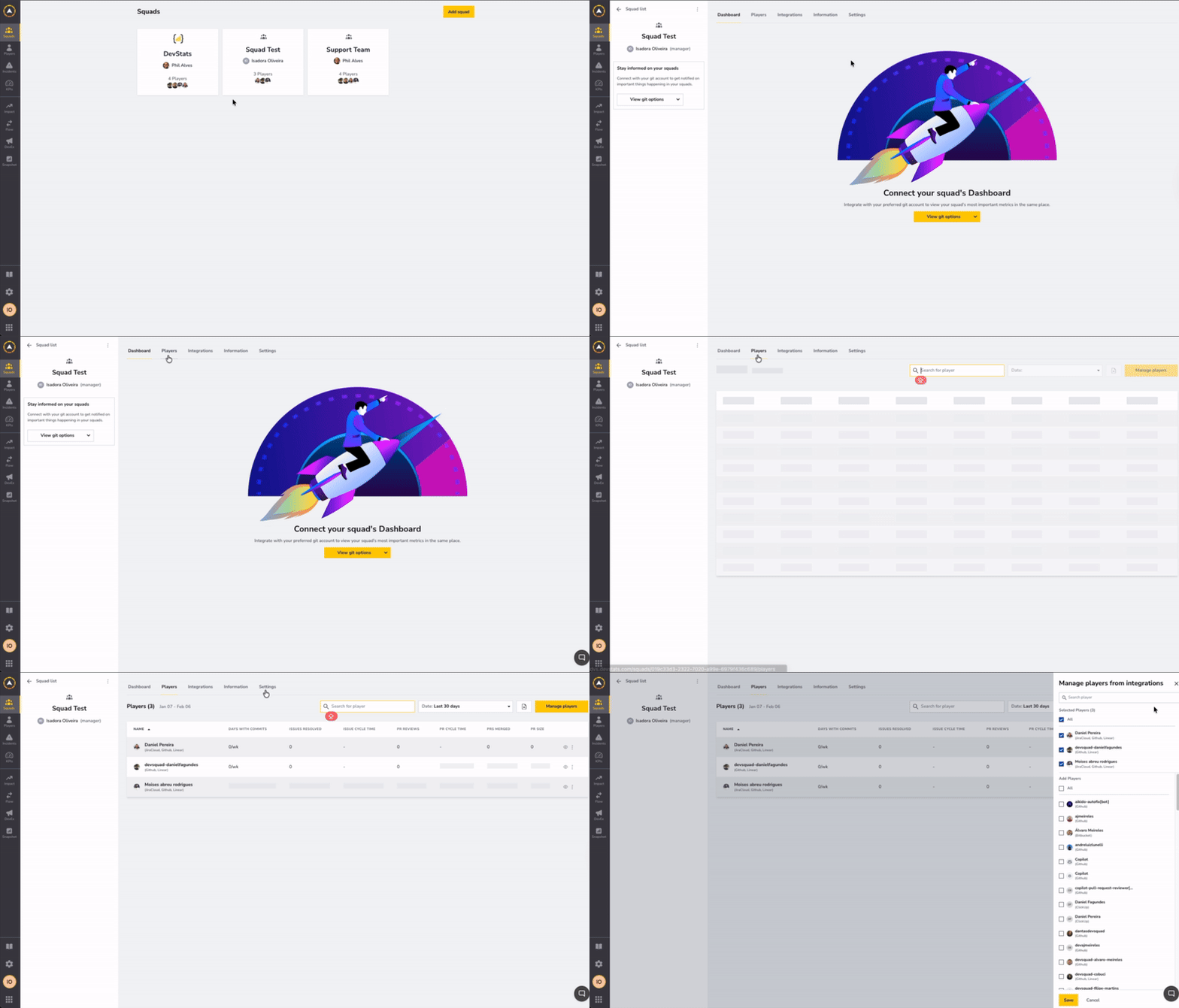
Step 2: Remove Player from Current Squad
- In the manage players sidebar, search and uncheck the player you want to move
- Click "Save" to remove them from the current squad
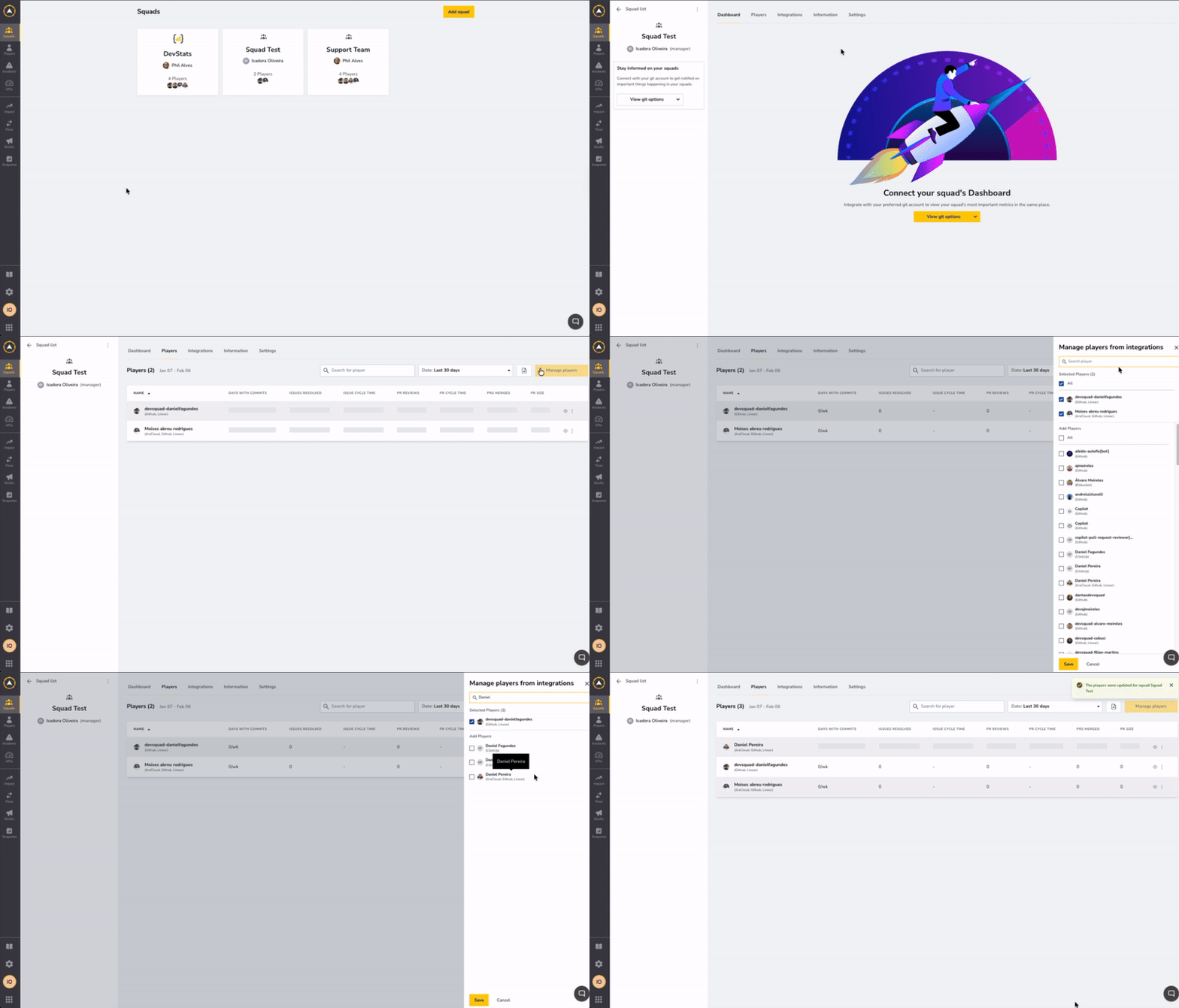
Step 3: Add Player to the New Squad
- Navigate to the target squad's players page
- Click "Manage players"
- Search and check the player you want to add
- Click "Save" to add them to the new squad
How to Retrieve or Add a Player That Did Not Appear During the Integration Process?
Scenario 1: Player is in a New Repository That Hasn't Been Integrated
The player may be new and their repository hasn't been integrated yet.
Solution: Integrate the new repository to make the player available.
Scenario 2: Player is Disabled
Check Player Status
The player might be disabled in the squad-collaborator pivot table.
Re-enable the Player
- Navigate to the squad.
- Click on the Players tab.
- Select Manage players and search for the disabled player.
- Check the player.
- Click Save.
Scenario 3: Repository Has Expired Credentials
The repository the player is working in has expired credentials and isn't showing up.
Solution: Navigate to Settings → Repositories and click on the shield icon to reauthorize the squad repository.
