This section lets you fine-tune how task data is interpreted and displayed in your workspace. By customizing these rules, you can ensure that only relevant issues are considered, and your metrics accurately reflect your team’s workflow.
Exclude Tasks
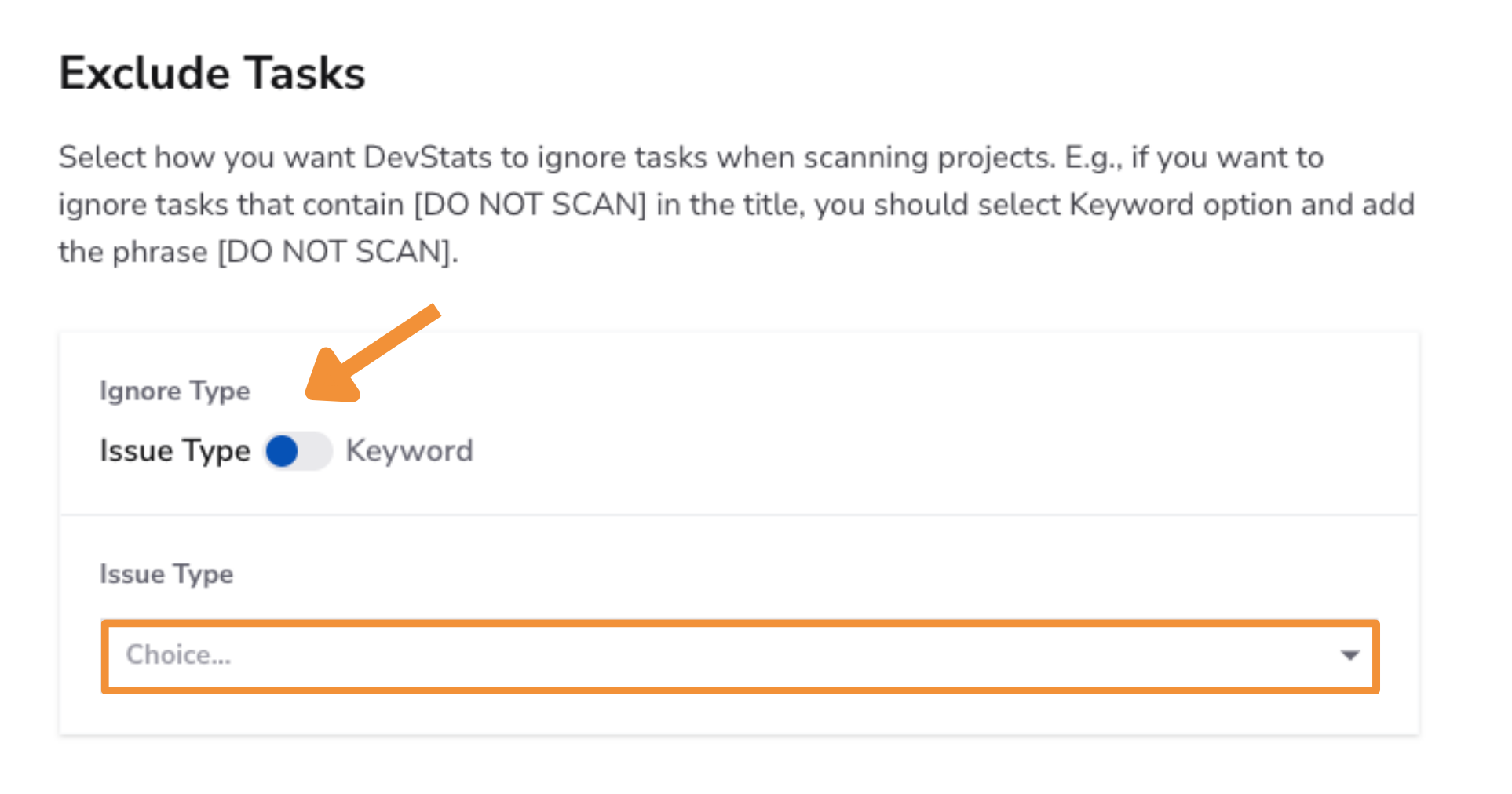
The "Exclude Tasks" setting lets you filter out specific tasks from your metrics based on type or keyword.
Configuration Options:
- Ignore Type:
- Issue Type: Select specific issue types (e.g., Bug, Task, Feature) to exclude from metrics.
- Keyword: Use keywords to exclude tasks. For instance, if tasks contain
[DO NOT SCAN]in the title, enter the keyword to ignore such tasks.
How to Use:
- Choose the ignore type (Issue Type or Keyword).
- If using keywords, enter the phrase you want DevStats to ignore.
Example:
[DO NOT SCAN]
Exclude Subtasks
The “Exclude Subtasks” setting allows you to automatically remove all sub-issues (subtasks) from report metrics.
When this option is enabled, DevStats will ignore any issue classified as a subtask, ensuring that your metrics reflect only parent-level work items.
Configuration Option: Exclude Subtasks (Toggle):
- On: All subtasks are automatically excluded from metrics.
- Off: Subtasks are included and counted normally.
No additional configuration is required.
How to Use:
- Enable the Exclude Subtasks toggle.
- Once activated, all subtasks will be ignored across report metrics.
- Disable the toggle at any time to include subtasks again.

Example:
- A parent issue with multiple subtasks will count as one item only in metrics.
- Subtasks such as implementation details, checklists, or supporting work will not affect throughput, cycle time, or other calculations when the toggle is enabled.
Custom Assignee Field
The "Custom Assignee Field" setting allows you to specify a custom field from Jira that represents the assignee of tasks in your workflow. By providing the field ID of the custom assignee field, DevStats can accurately map and manage task assignments in alignment with your team's workflow.
Why use custom fields?
This feature is particularly useful if your Jira instance uses a custom field to track task ownership, rather than the default assignee field. Configuring this ensures DevStats processes your data correctly, leading to accurate metrics and insights.
Configuration:
- Locate the Field ID in Jira
- Go to your Jira project settings.
- Find the custom field used for task assignees.
- Note the ID associated with this custom field (e.g.,
1042).
- Enter the Field ID in DevStats
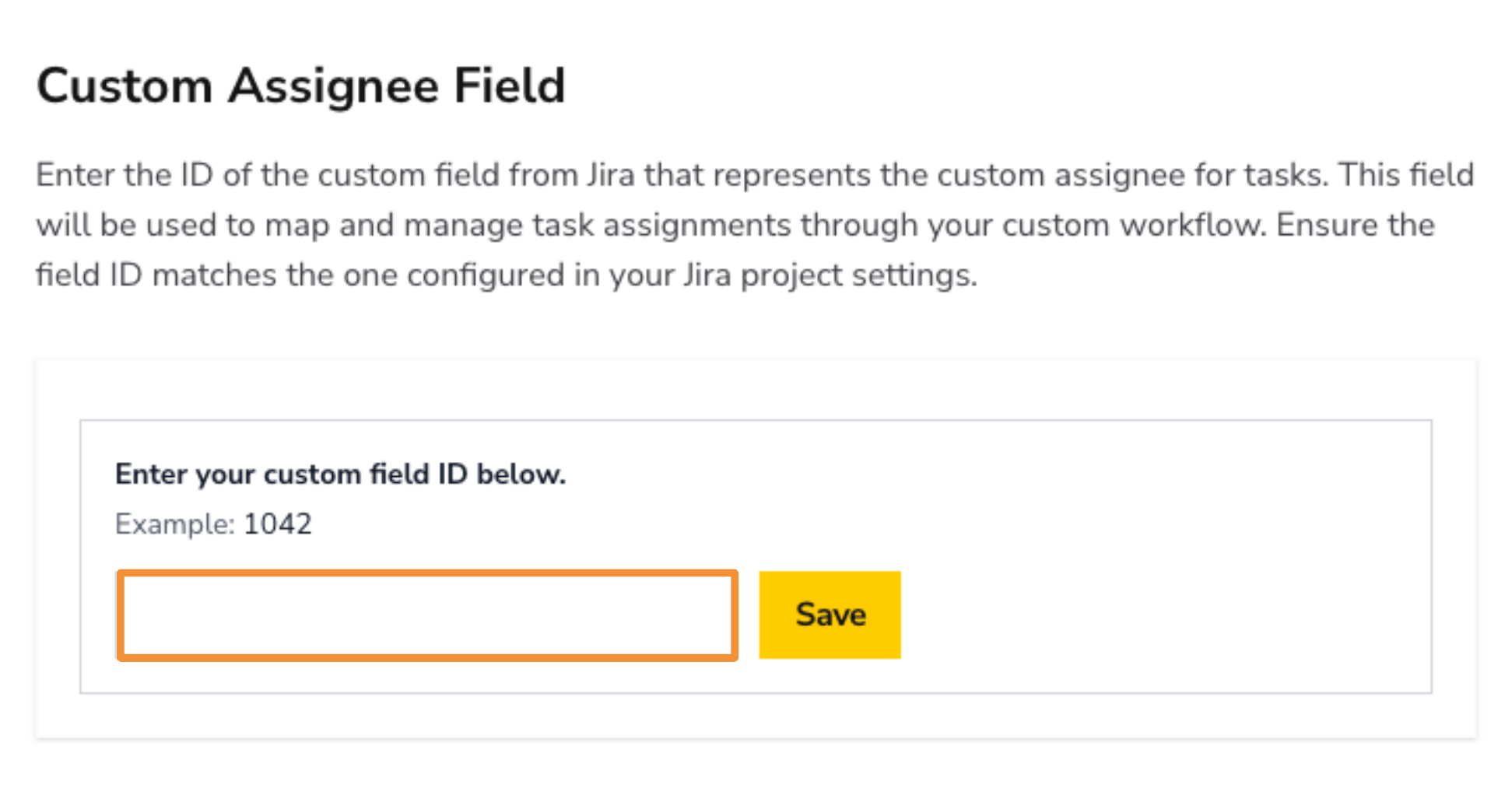
- In Settings > Issue tracker rules, locate the Custom Assignee Field section.
- Enter the custom field ID into the input box provided.
Example:
1042
- Save Your Changes
- Click the Save button to apply the custom field ID.
- DevStats will now use this field to map assignees in your tasks.
Notes and Tips
- Ensure Accuracy: The field ID must exactly match the one configured in your Jira project settings.
- Default Field Use: If you do not use a custom field, this step is not necessary, and DevStats will rely on the default assignee field in Jira.
- Validation: Double-check the field ID before saving to avoid errors in task mapping.
Configuring this setting ensures that DevStats can fully adapt to your Jira workflow and provide meaningful insights into task ownership and team performance.
Done Column
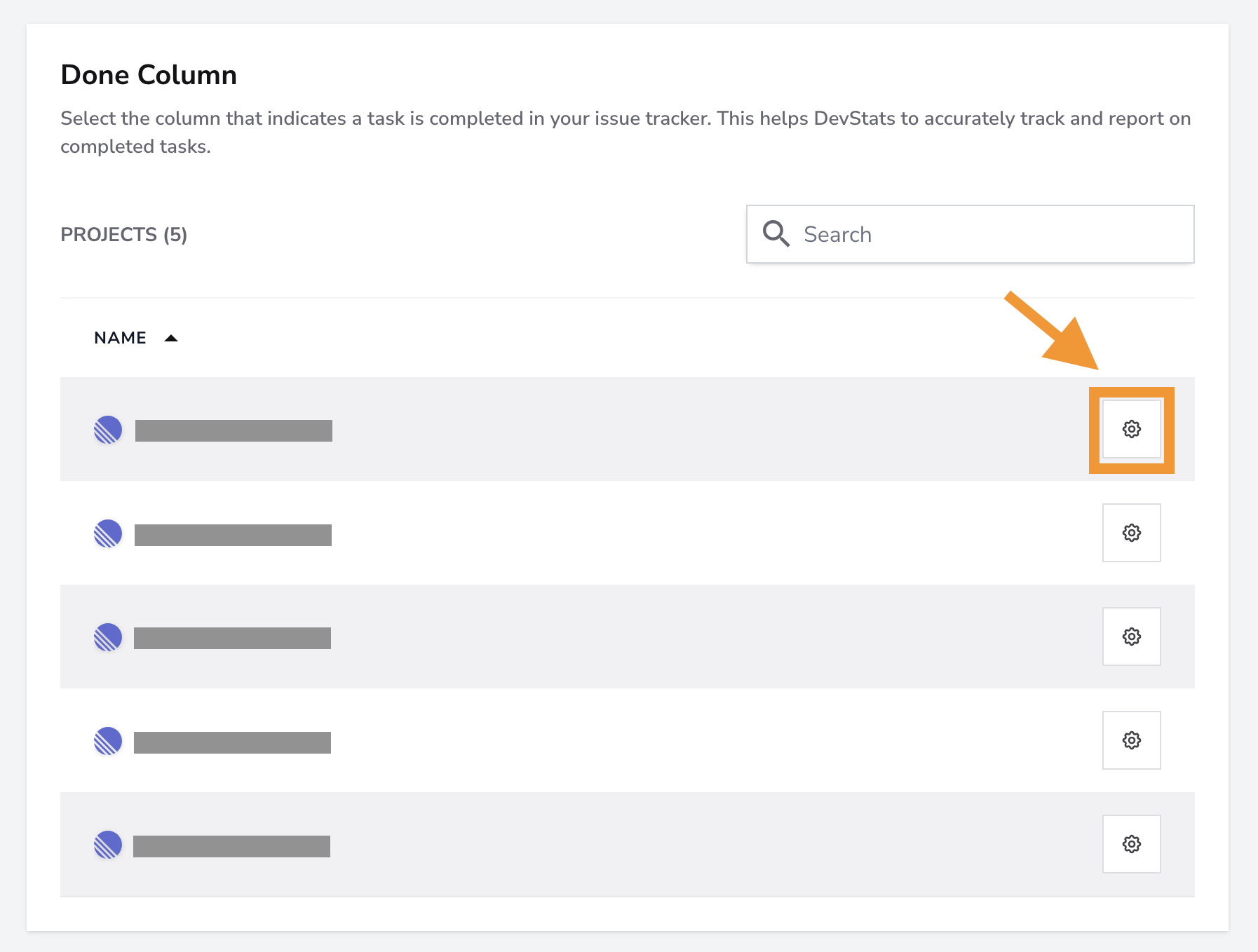
The Done Column setting lets you select one or more columns or statuses per project to define when a task should be considered "done."
Why configure a done column?
Different projects may use different names for the column that indicates task completion (e.g., Done, Closed, Completed). This setting ensures DevStats interprets the correct status across all your projects, providing accurate completion metrics.
Note: This setting only works when a project management tool is used as the data source (e.g., Jira or Linear).
Configuration
- Open Project Configuration
- Go to Settings → Reports Configuration → Issue tracker rules → Done Column.
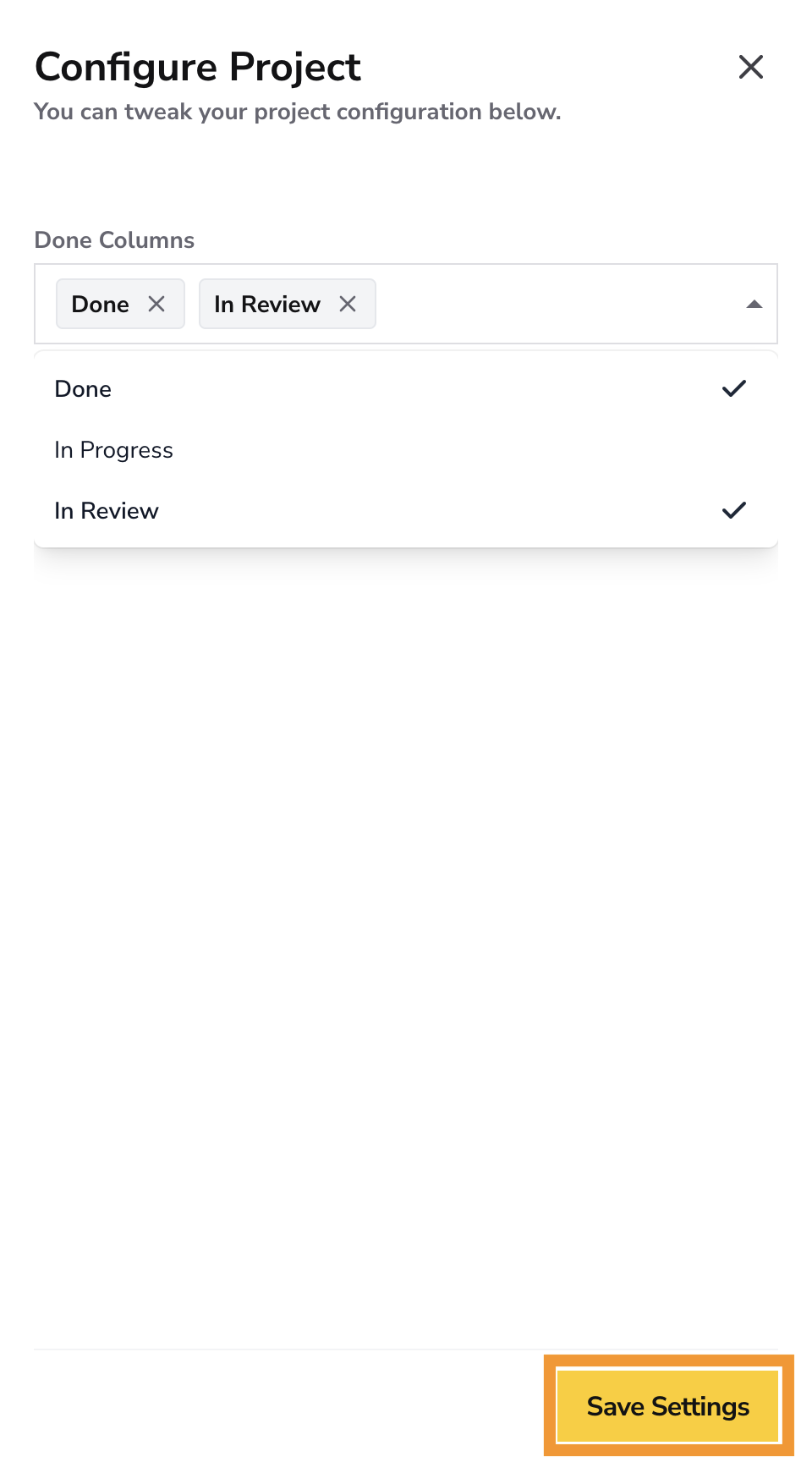
- Find the project and click its gear icon to open Configure Project.
- Select the Done Columns
- Use Done Columns to select all statuses that represent completion in this project's workflow, such as Done and Closed.
- A task in any selected status is considered completed. Only select In Review if it actually represents completion in your workflow; the screenshot illustrates multiple selection, not recommended statuses.
- Save Your Changes
- Click Save Settings to apply your configuration.
- Changes trigger a background recalculation. Configuration is temporarily unavailable while the project is syncing or recalculating.
- To remove the custom configuration, clear all selected statuses and save.