DevStats provides an API for submitting incidents and updating incident data. This tutorial focuses on creating and resolving incidents via the API, helping ensure accurate MTTR calculations in your DORA metrics.
☑️ Prerequisites
Before getting started, ensure you have:
- An API token to authenticate requests. If you don't have one, follow this guide to create your API token.
- A tool like Postman (UI) or cURL (CLI) to send API requests.
Step 1: Create an Incident
To create an incident, send a POST request with the following details (API reference).
Fields
- Repositories (
repositories): Required array of repository full names, even for a single repository. Use at least one existing repository from your workspace. - Name: Incident name.
- Description: Detailed explanation of the incident.
- Detection Method: How the incident was detected (
automated_monitoring,customers, orinternally). - Started At: Incident start date in ISO 8601 format (e.g.,
2024-07-20T15:30:00+00:00). - Status (
status): Required whenresolved_atis omitted. For an unresolved incident, usedetected,investigating,identified, ormitigated; this example usesdetected. - Resolved At (Optional): Resolution date in ISO 8601 format, after
started_at. When provided, the API sets the incident status toresolved.
Request Configuration
- Endpoint:
https://service.devstats.com/api/v1/incidents - Headers:
Accept: application/jsonandContent-Type: application/json - Authorization:
Bearer YOUR_API_TOKEN(Replace this value with your API token)
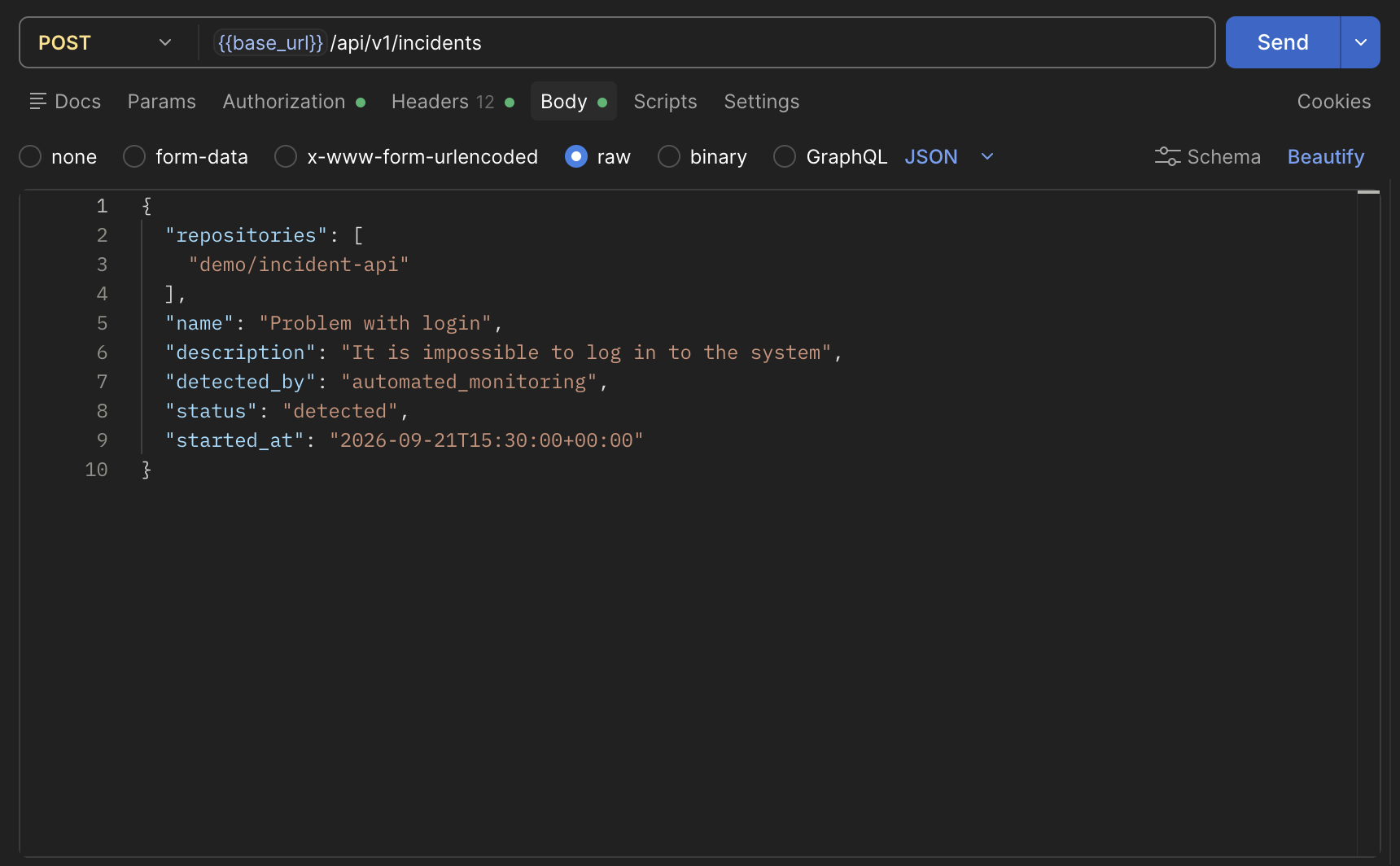
Here is an example POST request body for an unresolved incident. Replace organization/repository with a repository full name from your workspace:
{
    "repositories": ["organization/repository"],
    "name": "Problem with login",
    "description": "It's impossible to log in to the system",
    "detected_by": "automated_monitoring",
    "status": "detected",
    "started_at": "2024-12-09T15:30:00+00:00"
}
Example in Postman using demo data. The base_url environment variable points to the API URL, and demo/incident-api is the example repository.
Example Response
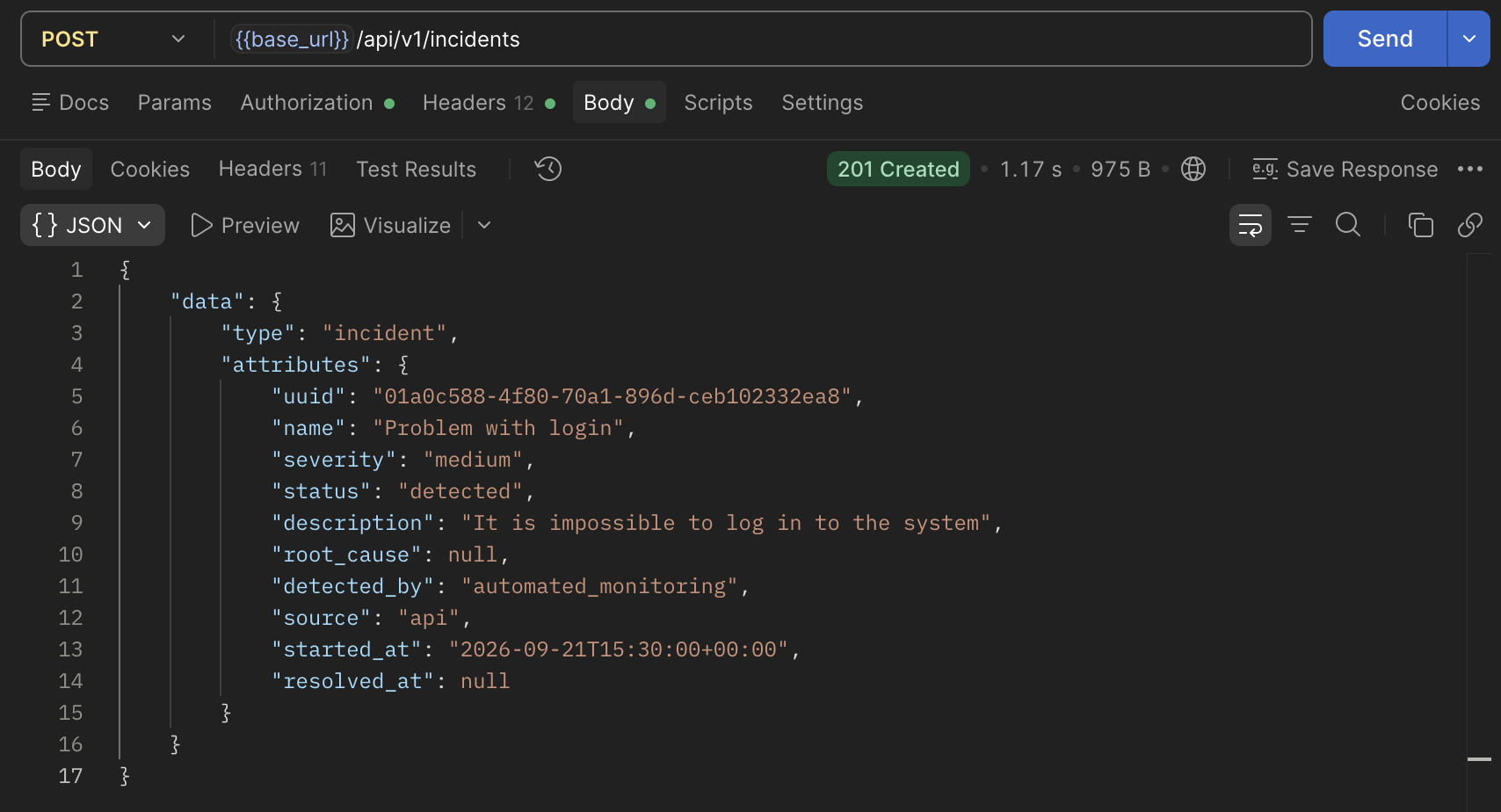
You’ll receive a response confirming the incident creation. Ensure you copy data.attributes.uuid from the response—this is needed to update the incident in the next step.
Tip: If the
resolved_atfield isnull, the incident is considered active.
Step 2: Update Incident With Resolved Date
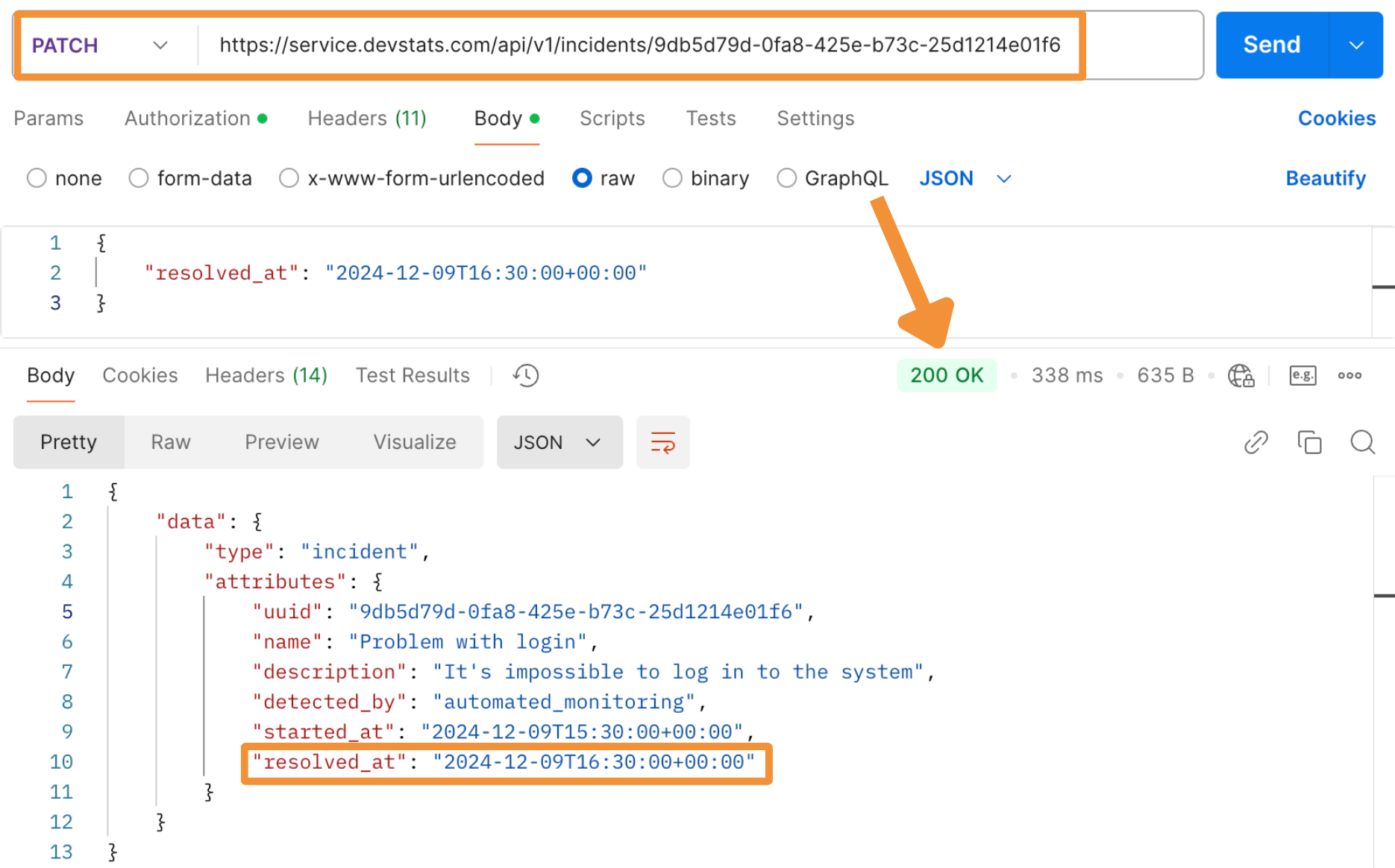
Once the incident is resolved, send a PATCH request to update it with the resolution date (API reference). This action moves the incident to the Resolved Incidents tab in DevStats and includes it in MTTR calculations.
Request Configuration
- Endpoint:
https://service.devstats.com/api/v1/incidents/<UUID>(replace<UUID>with the copied UUID from Step 1). - Headers:
Accept: application/jsonandContent-Type: application/json - Authorization:
Bearer YOUR_API_TOKEN
Example Request Body
Don't forget to add the "resolved_at" field to the request body.
{
    "resolved_at": "2024-12-09T16:30:00+00:00"
}
Example Response
You’ll receive a response confirming the update, and the resolved_at field will now reflect the resolution time.
Video Tutorial
✅ Final Verification
Go to the Incident Management feature in DevStats and check the "Resolved Incidents" tab. You should see the updated incident listed with the resolution details.
Automation Tip: If you use an incident management tool, you can integrate it with the DevStats API to automatically submit and update incidents, saving time and ensuring accurate MTTR tracking.